AI CRO Audit
In short
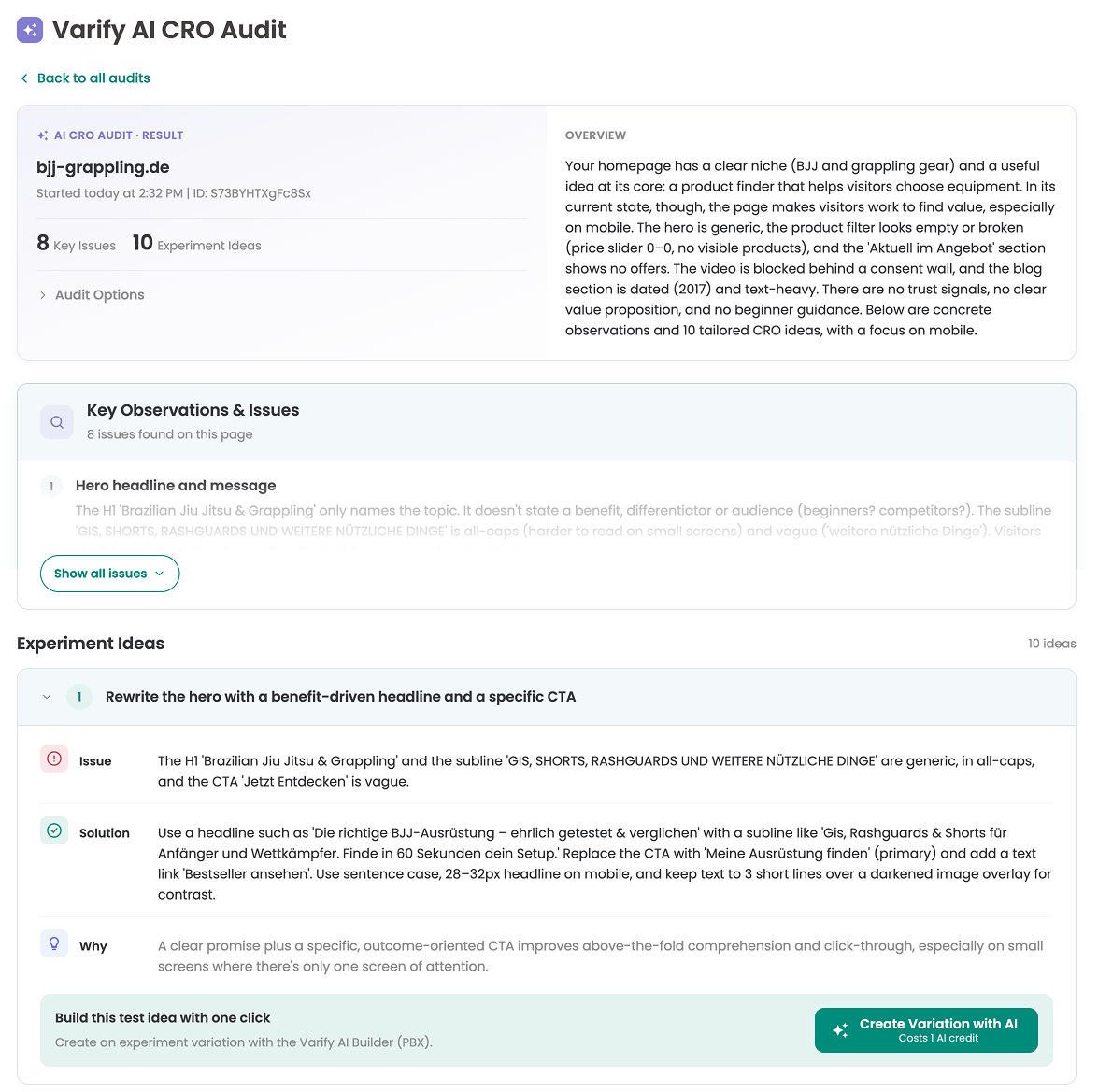
The AI CRO Audit analyzes any page and gives you CRO insights, concrete recommendations and 10 test ideas for A/B tests. You can add your own instructions and GA4 data to the audit, and turn any test idea into a finished variation with one click. Use it when you need ideas for your next experiments or want to find out what keeps a page from converting.
Where can you find the AI CRO Audit?
You can open the AI CRO Audit in two ways:
- In the menu on the left, click „Get Test Ideas“.
- Next to the „Create new experiment“ button, click the second button, „Get test ideas“.

Create AI CRO Audit
To create a new AI CRO audit, enter the URL of the page you want to check in the „Your Website URL“ field. By default, the audit only applies to this one page.
Optional: Add further instructions
In the „What should the ai focus on?“ field, you can enter information that the audit should take into account. For example:
- what the audit should focus on
- the target group for which the website is intended
- what goal you want to achieve (e.g. more add-to-cart)
- or other useful information.
If you want to collect general ideas for your product pages, enter a single product page as the URL and write in the „Additional Instructions“ field that you want results that apply to all your PDPs.
Optional: Add GA4 data
If the GA4 MCP is activated, you can also add GA4 data to the audit. The audit then takes the data from your Google Analytics 4 property into account in addition to the page itself.
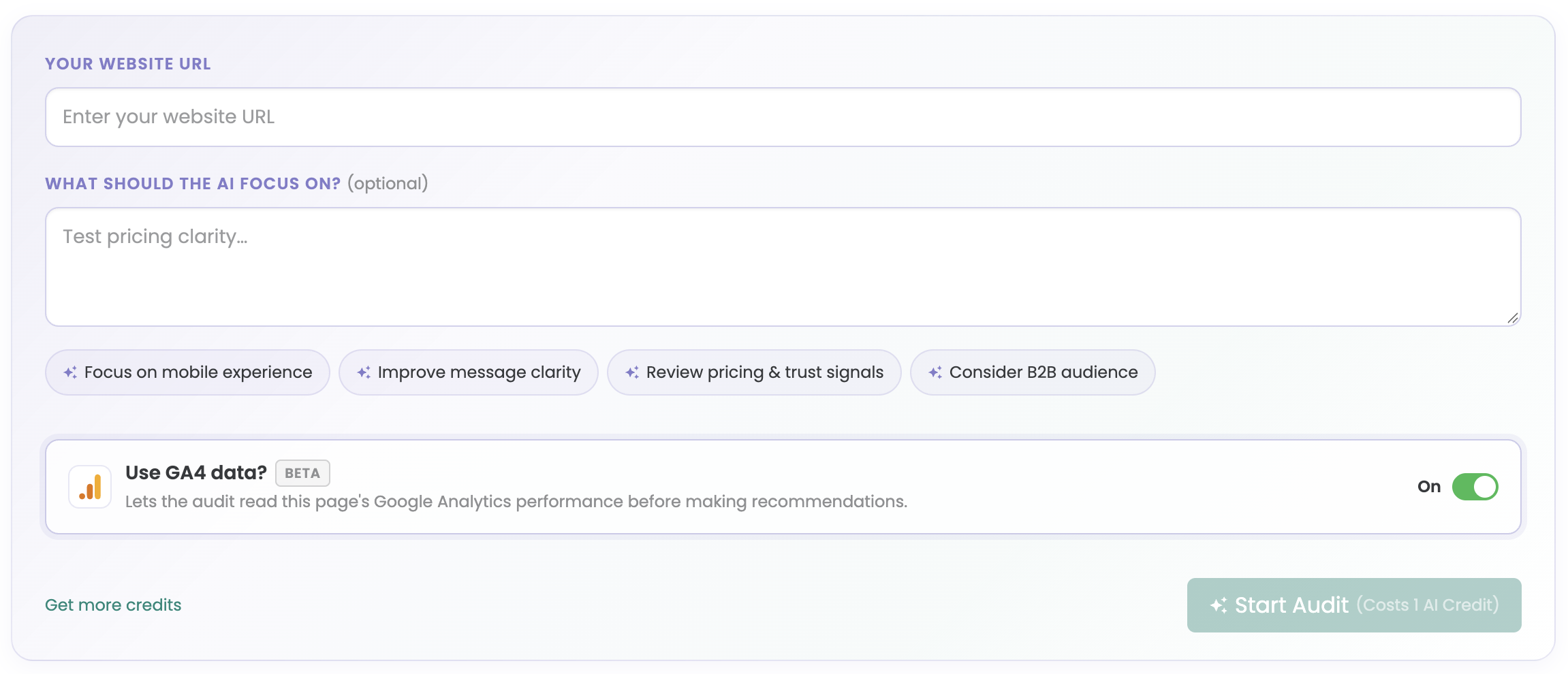
Once you are happy with your entry, click „Start Audit“.
It can take up to 5 minutes before you can open the audit. Until then, it shows the status „Pending“.

If an audit is not completed, runs into an error or stays „Pending“, contact our Support team.
Open an audit
All your audits, including older ones, are listed in the „Your Audits“ section below the „Create new audit“ area.
When an audit shows the status „Completed“, click „Open audit“. The audit shows the findings and all 10 test ideas.

Create a variation from a test idea
You can turn any test idea from the audit into a fully built variation for an A/B test with a single click.
- Open a completed audit.
- Go to the test idea you want to use.
- Click „Create Variation with AI“.
The AI builds the variation with all changes the test idea describes. You can then:
- check the variation in QA mode and start the experiment.
- edit the variation, either by describing further changes with Prompt-Based Experimentation or by adjusting it by hand in the visual editor.