Chrome browser extension
In short
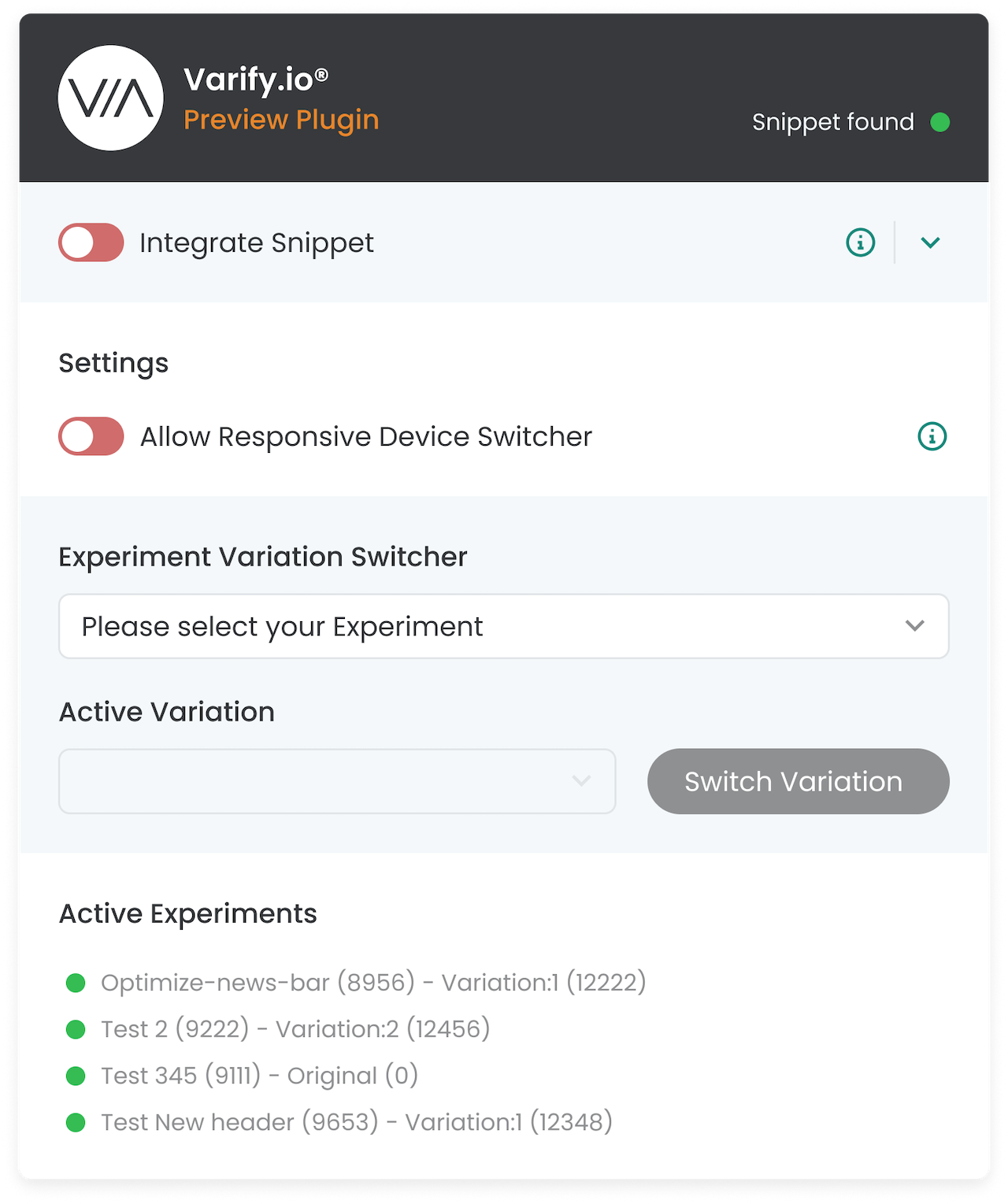
The Varify Chrome extension gives you a set of helpful tools for working with Varify in your browser. Use it before the snippet is live, check your implementation, work around editor restrictions on your site and inspect experiments that are already running. You can install it from the Chrome Web Store.
With the extension, you can:
- run the Varify snippet locally in your browser without integrating it on the page
- check whether the snippet is integrated in your website code
- use the Responsive Device Switcher even if your website blocks it
- see all active experiments on the current page and the variation you are assigned to
- change your assigned variation with the „Experiment Variation Switcher“
Installing the Chrome extension
- Download the extension:
- Download the Varify.io Chrome extension.
- You can find the extension under: Varify.io Chrome Extension
- Installation and activation in Chrome:
- Click on "Add" to install the extension.
- Activate the extension after installation.
- Add them to your extension bar in Chrome
Features of the Varify.io Chrome extension
Local integration of the Varify snippet
With the Varify Chrome extension, you can run the Varify code snippet only locally in your browser to test the editor and the functions of Varify.
This is how it works:
- Open the Varify dashboard and search for "Get Snippet Here".
- Copy the Varify snippet displayed there.
- Open the Varify.io Chrome extension.
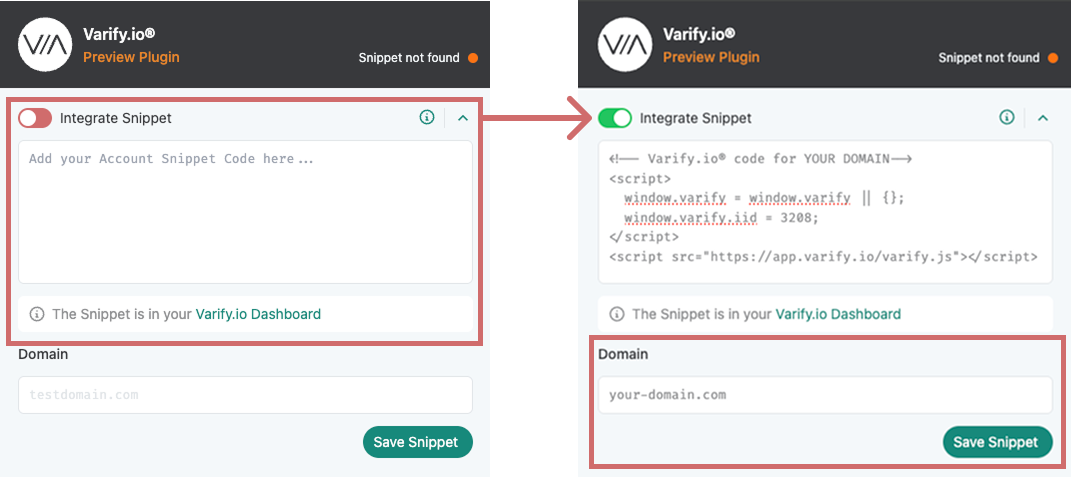
- Paste the copied snippet into the "Your Snippet Code" field within the extension.
- Enter the domain of the website you want to test in the „Domain“ field (example: test.com or varify.io)
- Save the snippet and domain by clicking „Save Snippet“
- Activate the toggle switch "Integrate Snippet" to execute the snippet only in your browser.
ImportantThis version only applies to your browser and is not visible to other users. As soon as the Varify snippet has been integrated directly into the website, you should deactivate the toggle switch again to avoid duplicate implementations.
Example 1: Test Varify Editor
You can try out the Varify Editor without integrating the snippet directly into your website. This allows you to familiarize yourself with the functions and test initial changes.
Example 2: Creating initial test experiments
Set up initial experiments and only display them in your own browser. This way you can check how changes look before you permanently integrate the snippet into the website.
Check code snippet integration
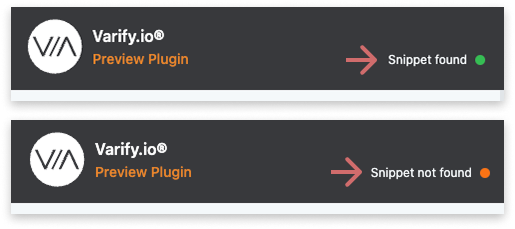
In the upper right area of the Varify Chrome extension, you can see at a glance whether the Varify code snippet is already integrated into the website code.
❗️Wichtig: This is about the integration directly in the website code, not the snippet that you inserted via the Chrome extension.
🟢 Green dot & "Snippet found" → The snippet is successfully integrated into the website.
🟠 Orange dot & "Snippet not found" → The snippet was not found and still needs to be integrated.
Bypassing problems with the Responsive Device Switcher
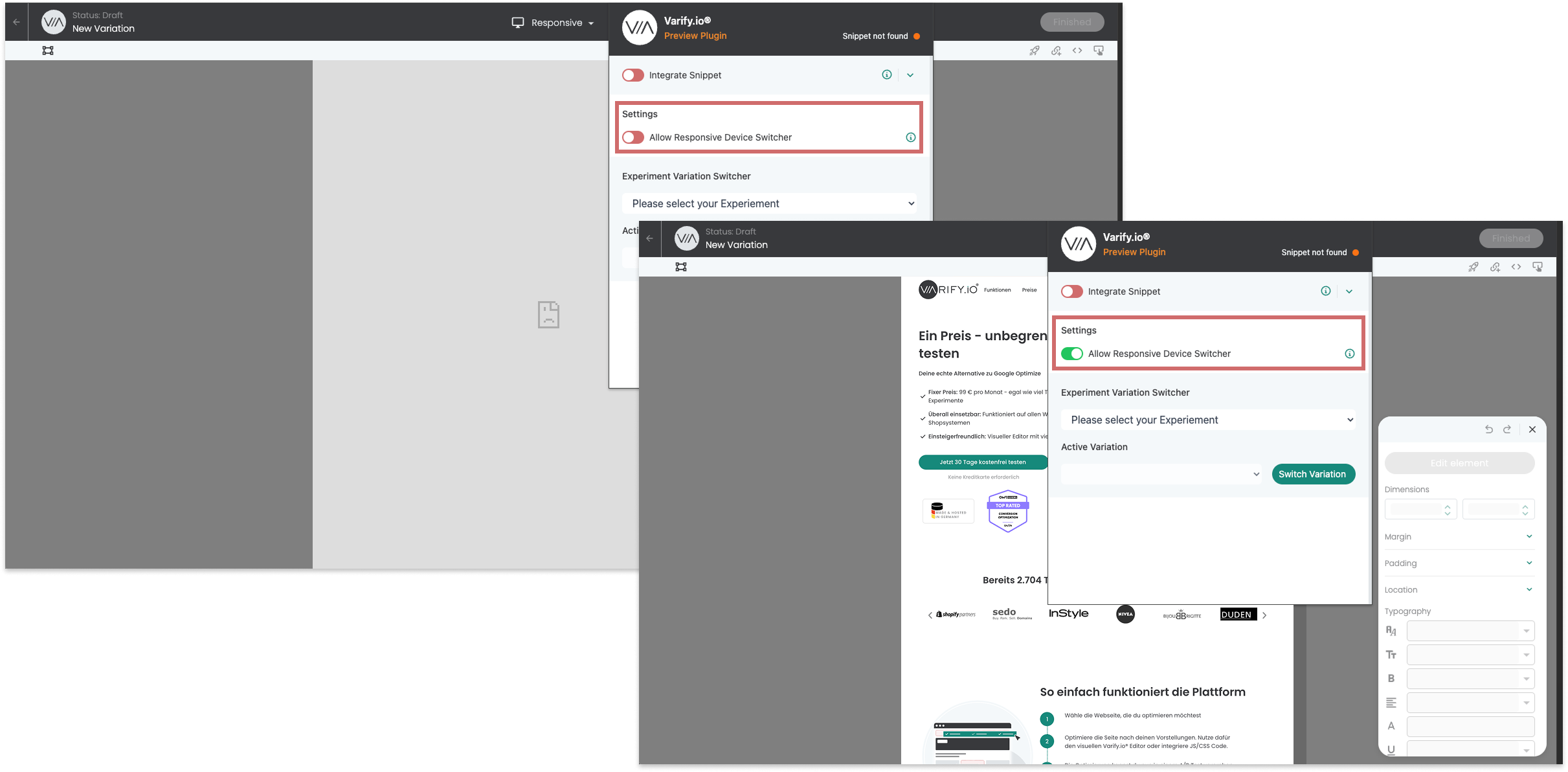
The "Responsive Device Switcher" in the visual editor allows you to display a website in different screen widths.
In some cases, framing restrictions may prevent the device switcher from loading the website. If this occurs, the Varify Chrome extension offers a simple solution:
- Activate the "Allow Responsive Device Switcher" switch in the Chrome extension.
- Reload the page.
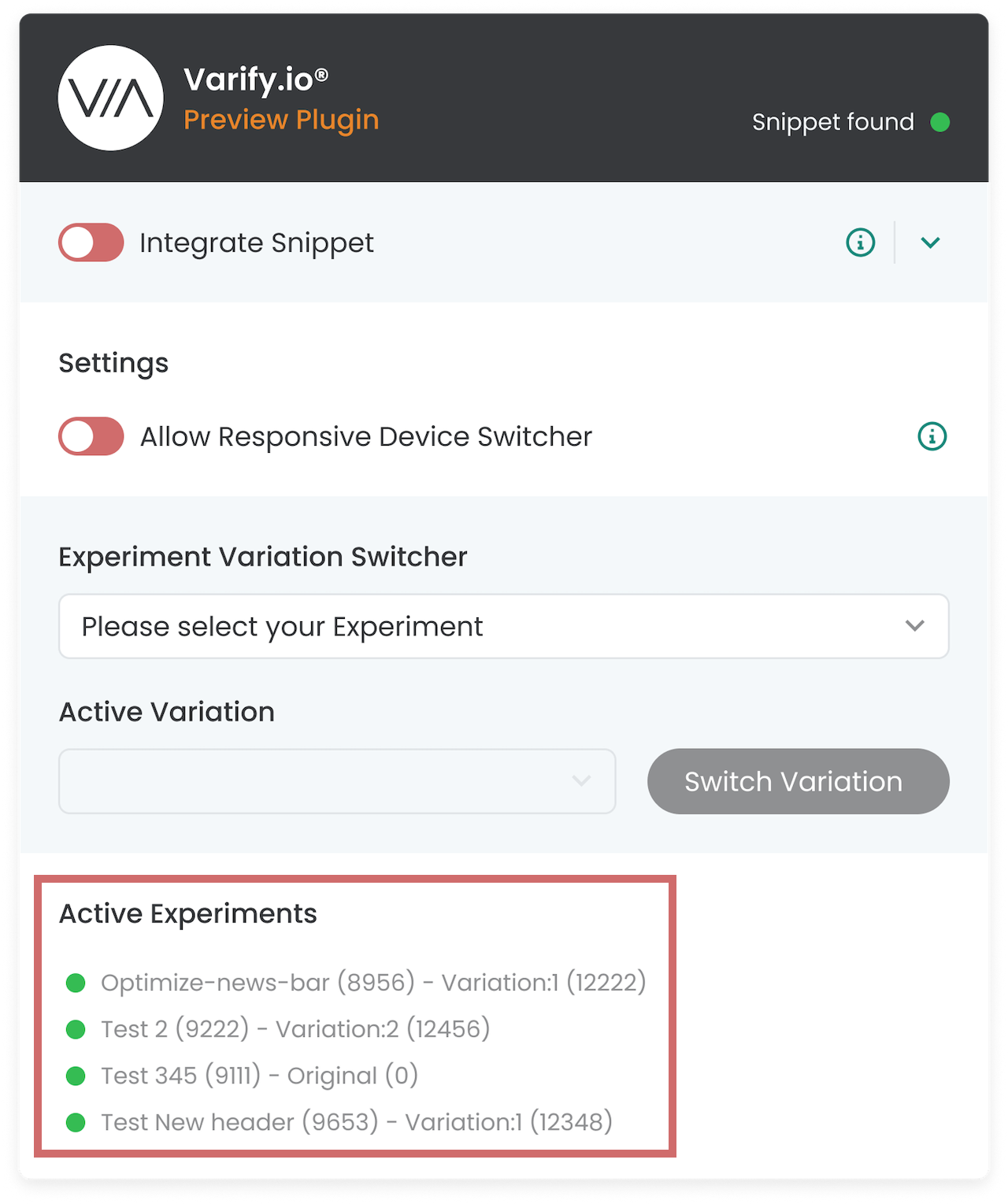
Active experiments
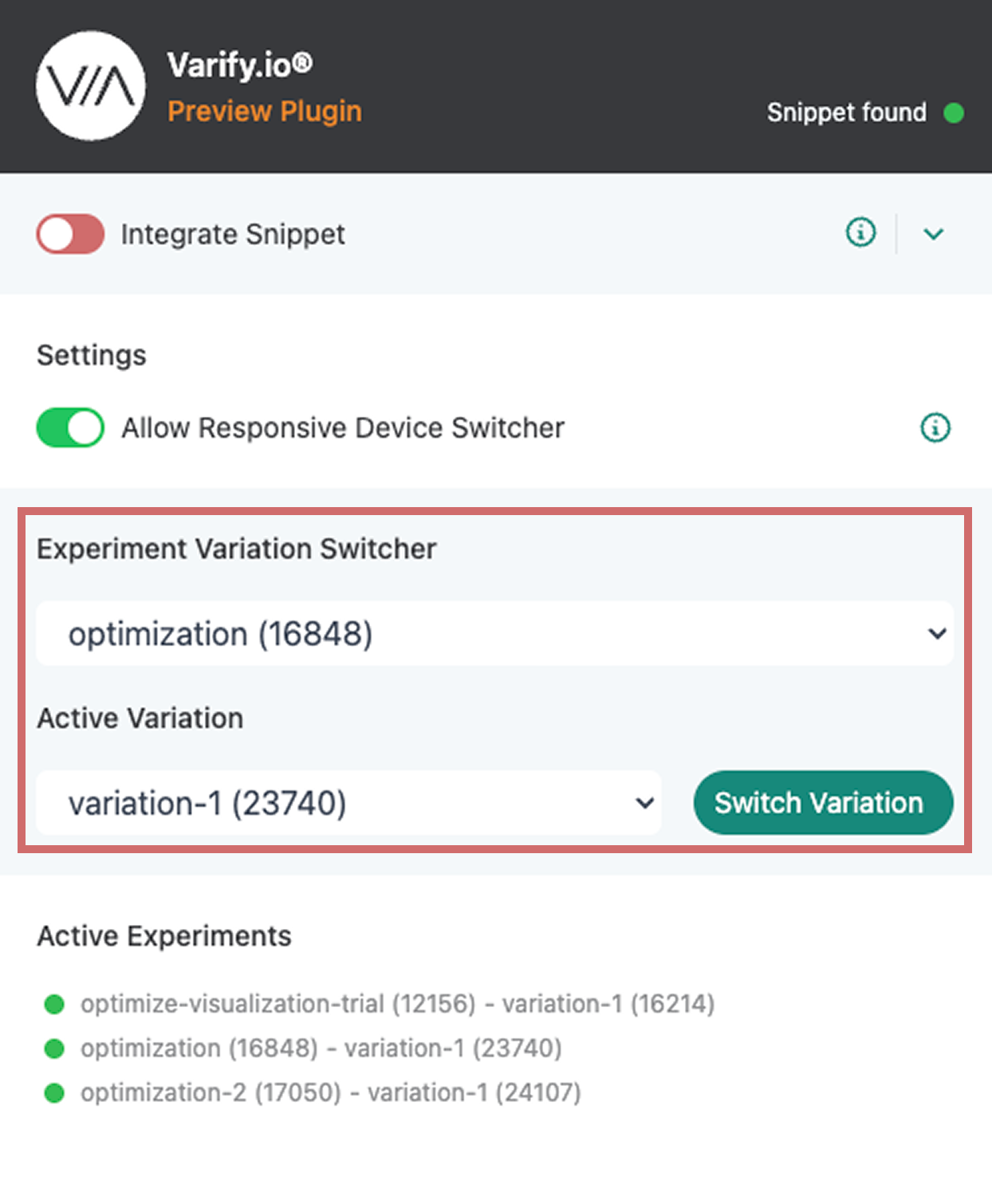
Under "Active Experiments" you can see all active experiments on the page you are currently viewing. As well as the variation to which you are currently assigned
This allows you to quickly check whether the "Page Targeting" and "Audience Targeting" settings are correct and whether the experiment is being played out for you as intended.
Experiment Variation Switcher
The Experiment Variation Switcher in the Varify Chrome extension allows you to change your assigned variation for the experiments played on the page.
This is how it works:
- The dropdown under "Experiment Variation Switcher" lists all active experiments on the page. Select the experiment for which you want to change the variation.
- The currently active variation is displayed in the dropdown under "Active Variation". Select the variation you want to switch to here.
- Click on "Switch Variation" to change them.
TIP: This function is particularly helpful for quality assurance, as you can switch between variations and check their display.
You can find out more here: A/B testing - quality assurance