Varify Realtime Tracking
Accounts created on or after September 17, 2026, can select „Varify Realtime Tracking“ directly under „Tracking Setup.“ Existing customers can request this feature via our contact form. The integration alongside GA4 is available to existing customers on request.
In short
Varify Realtime Tracking lets you analyze your experiments directly in Varify with no delay. A dedicated Varify tracking service measures your defined goals and displays them in Varify Reporting.
You can use it in two ways:
- As your tracking provider: Varify measures your experiments on its own and is the basis for your reports. You select it in „Tracking Setup.“
- As an integration alongside GA4: You have set up Google Analytics 4 in „Tracking Setup“ and additionally switch on Varify Realtime Tracking under „Integrations.“
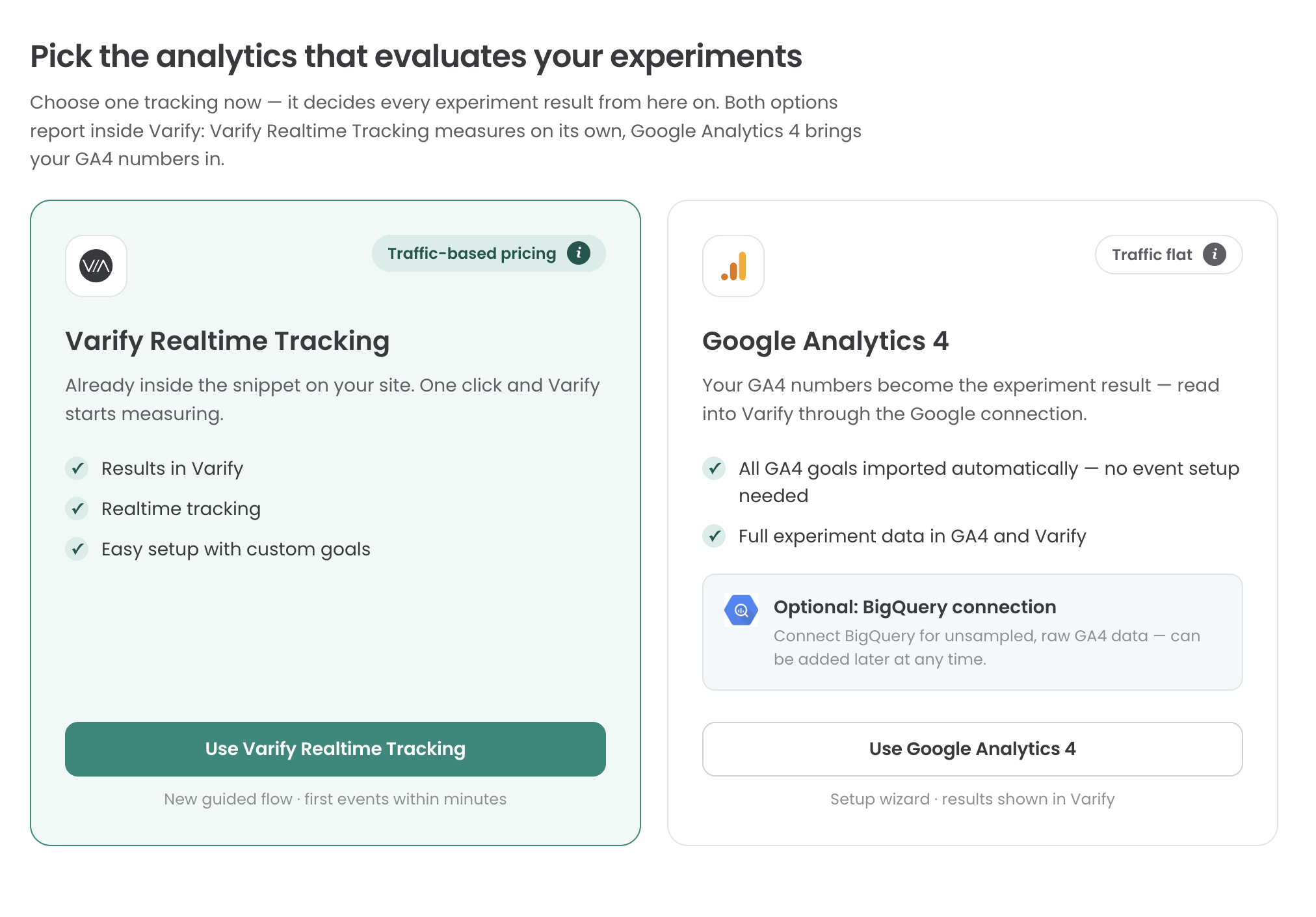
Provider or integration?
| As tracking provider | As integration alongside GA4 | |
|---|---|---|
| Where you switch it on | „Tracking Setup,“ card „Varify Realtime Tracking“ | „Integrations,“ card „Varify Realtime Tracking“ |
| Requirement | Available for your account | GA4 is set up in „Tracking Setup,“ and the integration is enabled for your account |
| User consent | You choose it during setup | Taken over from your GA4 setup |
| Reports show | Data of Varify Realtime Tracking | Varify goals and GA4 goals (also BigQuery), Shopify optional |
| GA4 goals | Can't be imported | Imported as usual |
Use Varify Realtime Tracking as your tracking provider
Step 1: Set up your tracking system
Go to „Tracking Setup“ and select „Varify Realtime Tracking.“ You can then decide whether to integrate Varify Realtime Tracking with or without „User Consent.“ This page can help you make that decision: https://varify.io/varify-tracking-gdpr-compliance/
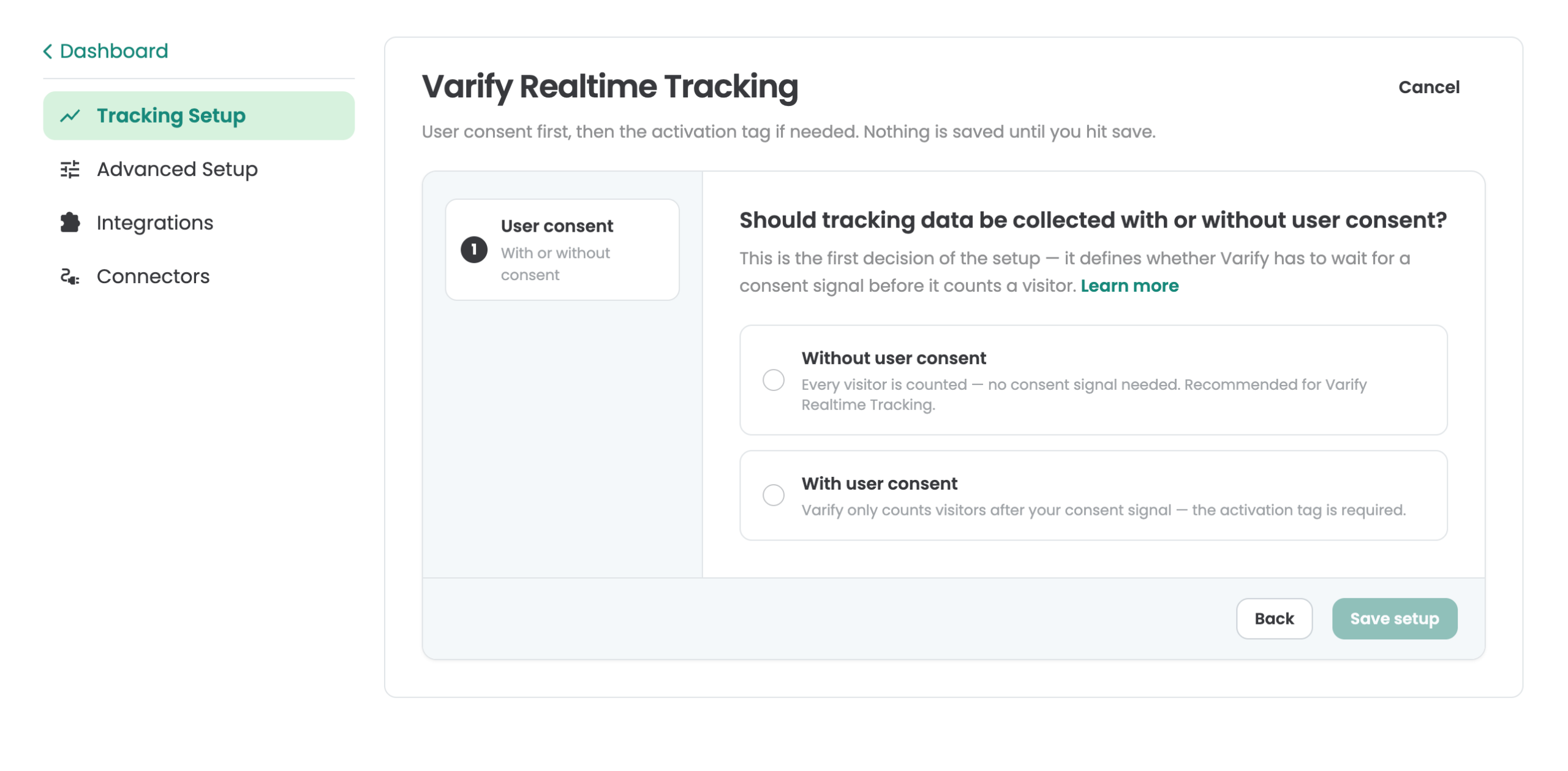
Step 2: Enabling Varify Realtime Tracking
Integration without user consent
If you've decided to load Varify Realtime Tracking without user consent, your basic tracking setup is already in place, and you can continue with „Set up your goals“ below.
Integration with user consent
An activation script is provided for integration with user consent. Tracking is activated as soon as this script is loaded. Integrate the script according to the specifications of your consent management platform (CMP). You can also use Google Tag Manager (GTM) for integration based on page views and a valid consent signal.
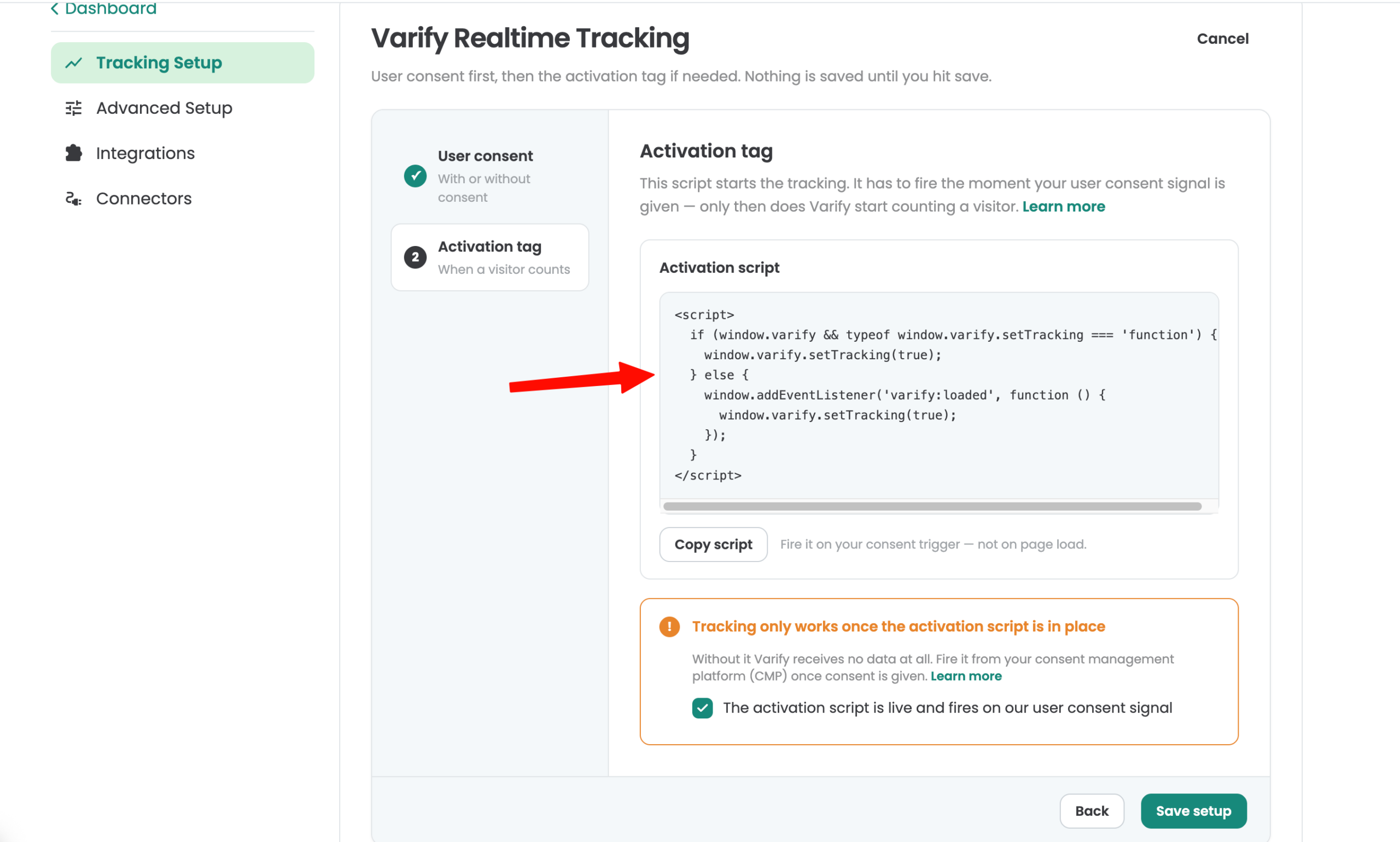
Send data to GA4
To also send your experiment data to GA4, switch on the Google Analytics 4 integration under „Integrations.“ GA4 goals can't be imported in this setup. You can find the setup here: Google Analytics 4 Direct Integration
Use Varify Realtime Tracking as an integration
Use this if GA4 is your tracking provider and you want Varify to measure your experiments additionally. The reports then show Varify goals and GA4 goals together, plus BigQuery data, and Shopify data if you have enabled it.
Step 1: Set up GA4 in Tracking Setup
Set up Google Analytics 4 first. You can find the options here: Set up tracking
Step 2: Switch on the integration
- Open „Integrations“ in the main navigation.
- Find the card „Varify Realtime Tracking“ and switch the toggle on.
Can't switch it on? The integration has to be enabled for your account first. Send us a message via our contact form. We'll get back to you.
Step 3: User consent
Varify Realtime Tracking follows your GA4 setup. If GA4 only tracks after user consent, Varify Realtime Tracking also starts only after consent has been given. For details, see Send data to your web analytics tool only after user consent.
Set up your goals
To analyze your experiments, create goals. You'll find the "Goals" section in the sidebar on the left. Goals are created the same way in both setups.
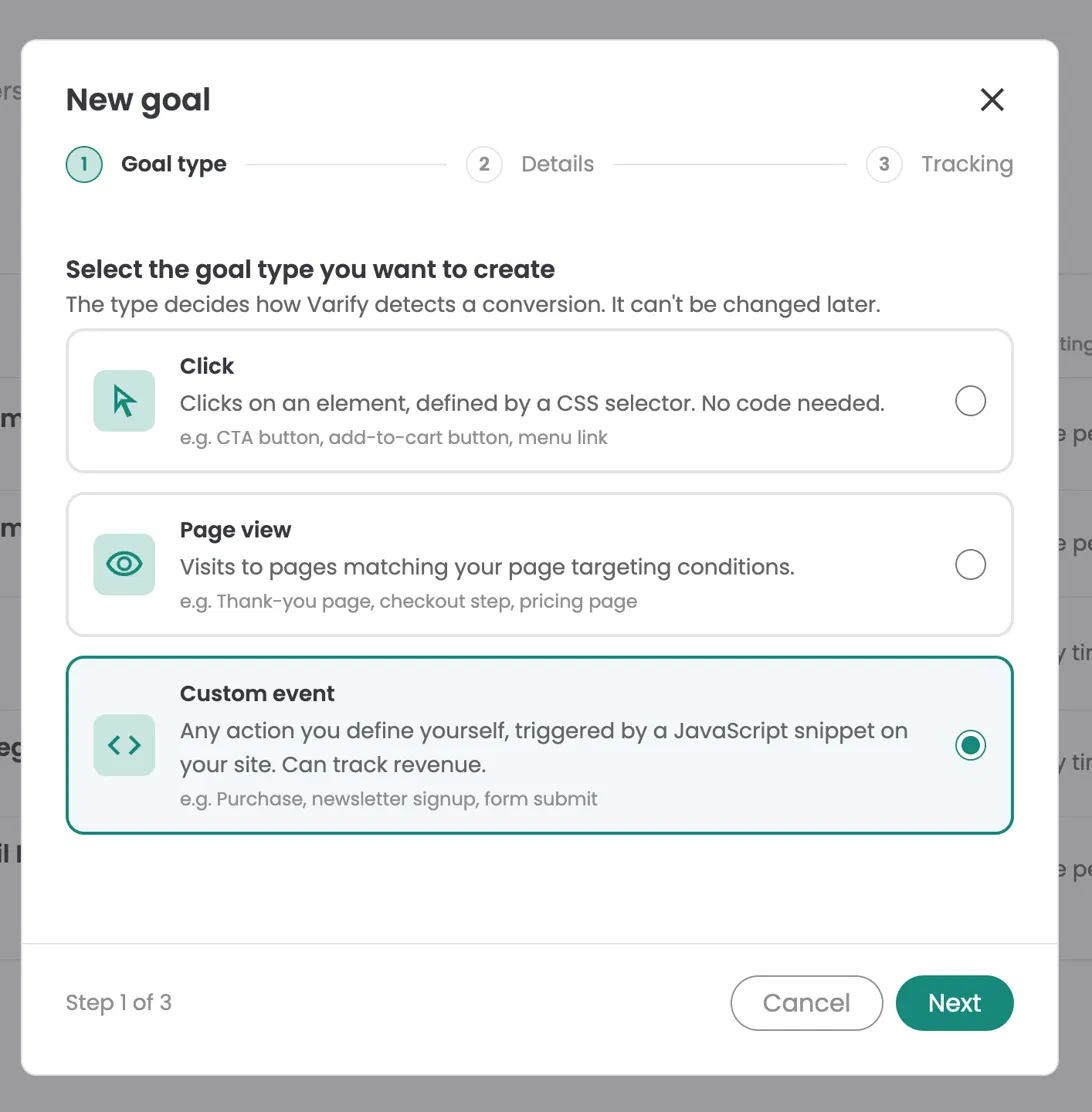
In the "Goals" section, you can choose from three types of goals: Click Goal, Page View Goal, and Custom Goal.
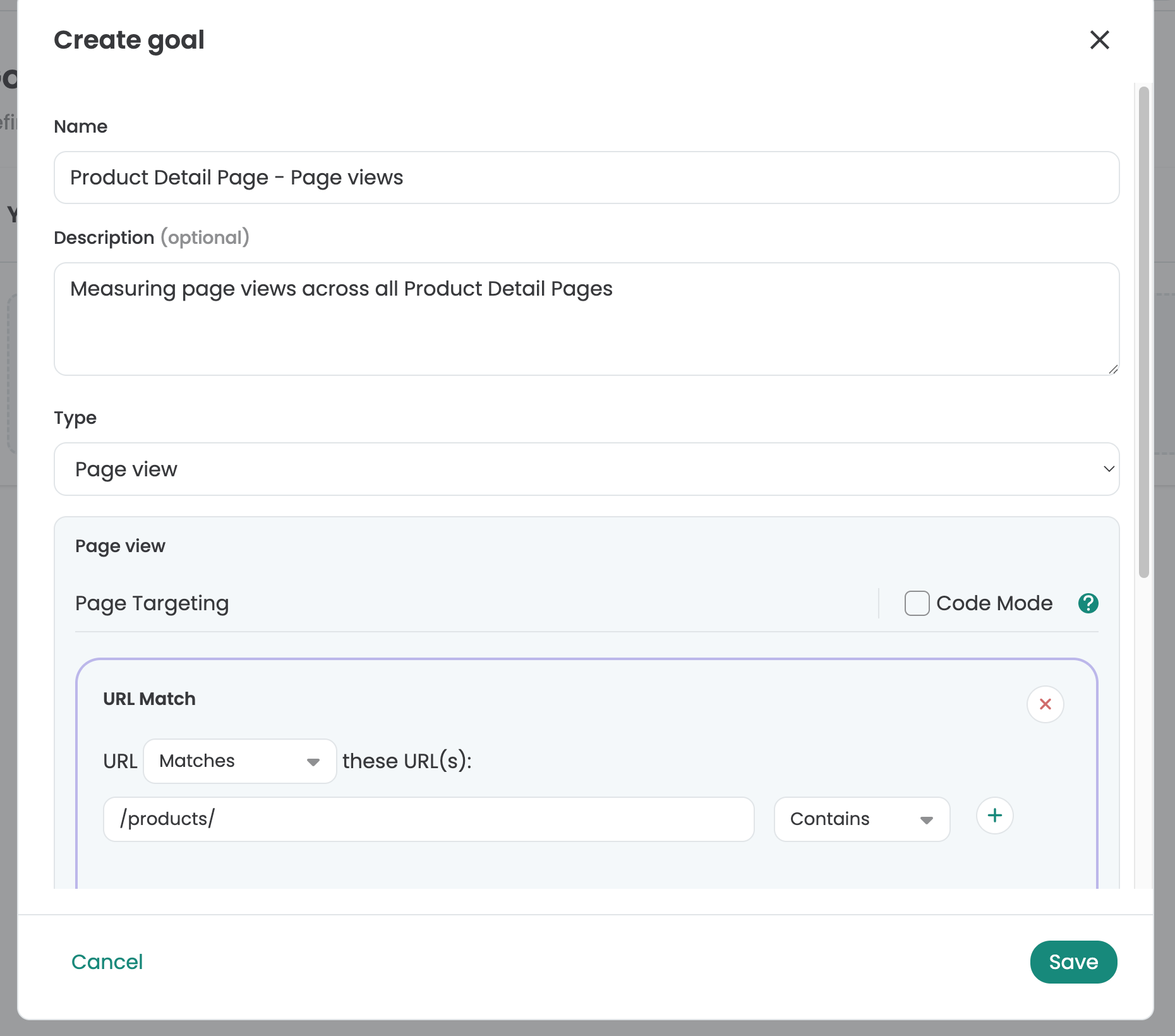
Setting Up Click Goals
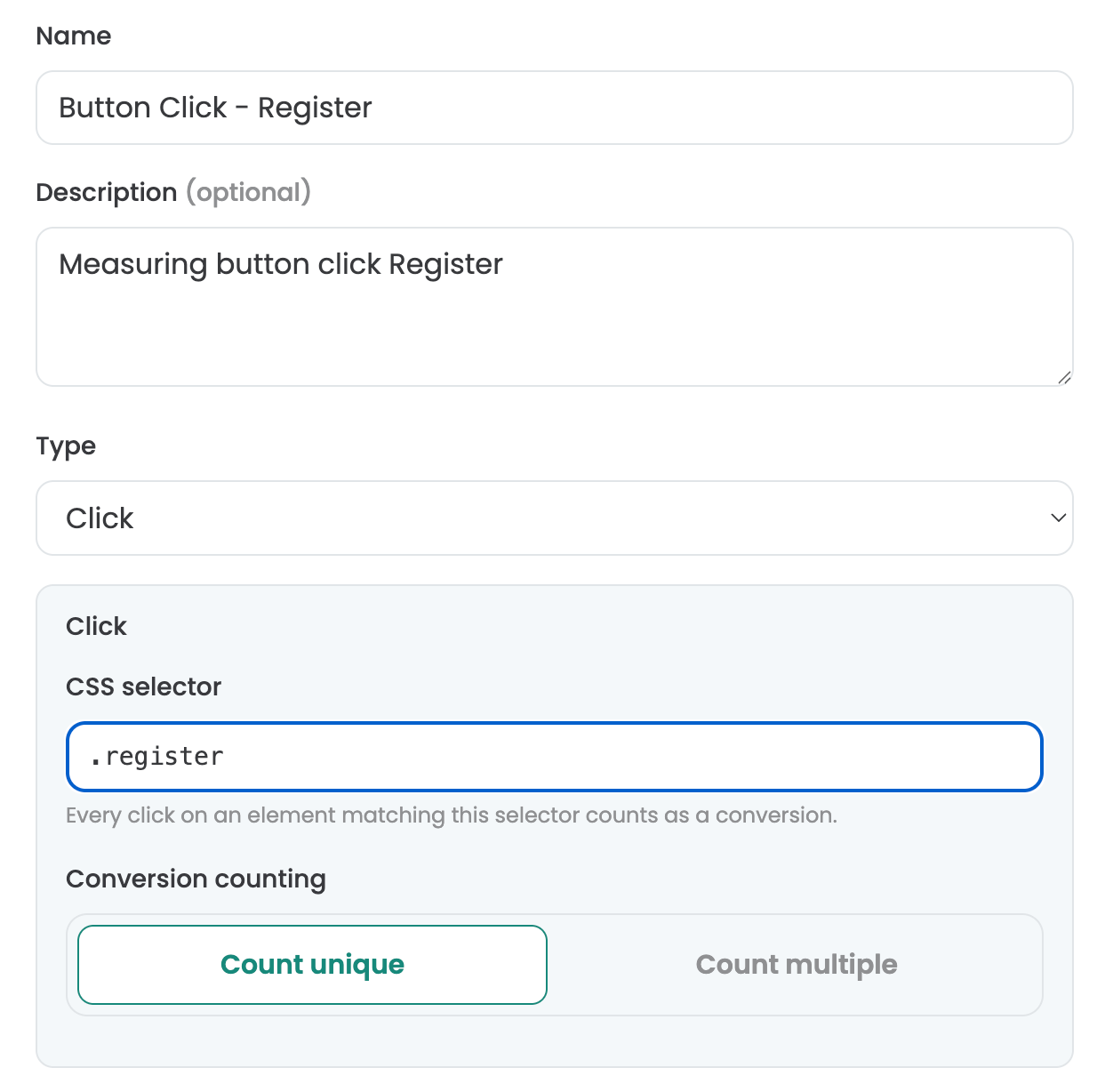
With Click Goals, you can measure how often experiment participants click on elements. To do this, define a custom selector for the element. To identify a custom selector for an element, you can use Varify’s visual editor, for example. Open it and select the element you want to track. Then copy the selector and enter it in the "Selector" field under "Click Goal."
Setting Up Page View Goals
With Page View Goals, you can measure how often your experiment participants view specific pages or page types. To do this, you can simply define your own custom rules to track the page views that meet your criteria.
Setting Up Custom Goals
You can use Custom Goals to create custom goals. For example, this might be when you want to measure the revenue value of an order. Custom Goals are triggered via JavaScript in your experiment.
Conversion Counting
With this setting, you can specify whether a goal should be tracked once or multiple times. By default, in A/B testing, each goal is tracked only once, since you’re usually only interested in whether a user achieved the goal at all. Multiple tracking, however, can be useful for revenue goals: In this case, a user’s order value can be accumulated across multiple sessions.
Tracking Shopify Checkout Goals
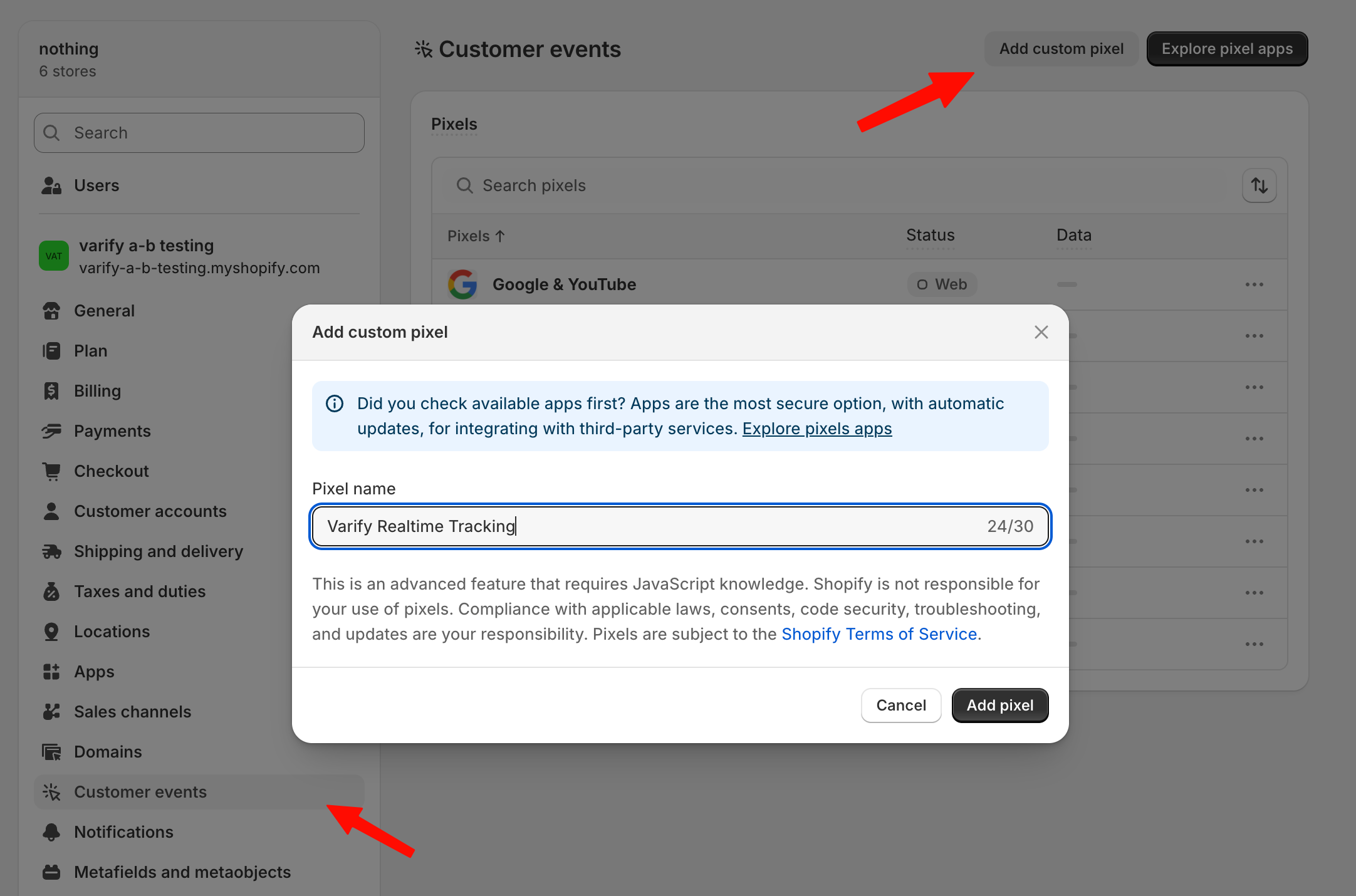
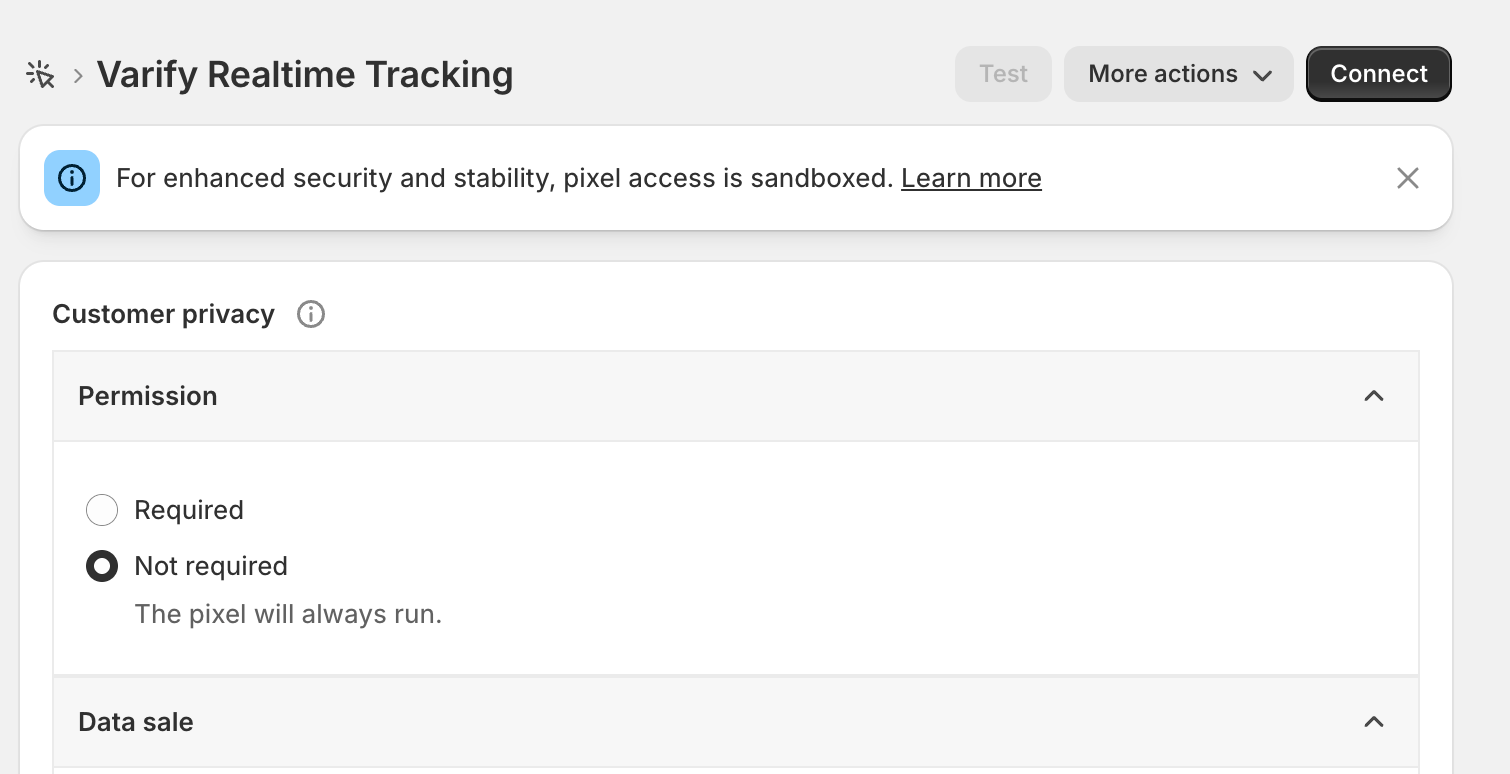
Shopify event goals such as „Purchase“ or „Start Checkout“ cannot be tracked directly through your website. Starting in 2025, Shopify has made it mandatory that these can only be tracked through the custom pixel on your website. To track these goals, go to „Settings > Customer Events“ and click the „Add Custom Pixel“ button. Set the pixel name to „Varify Realtime Tracking“ and click “Add Pixel.”
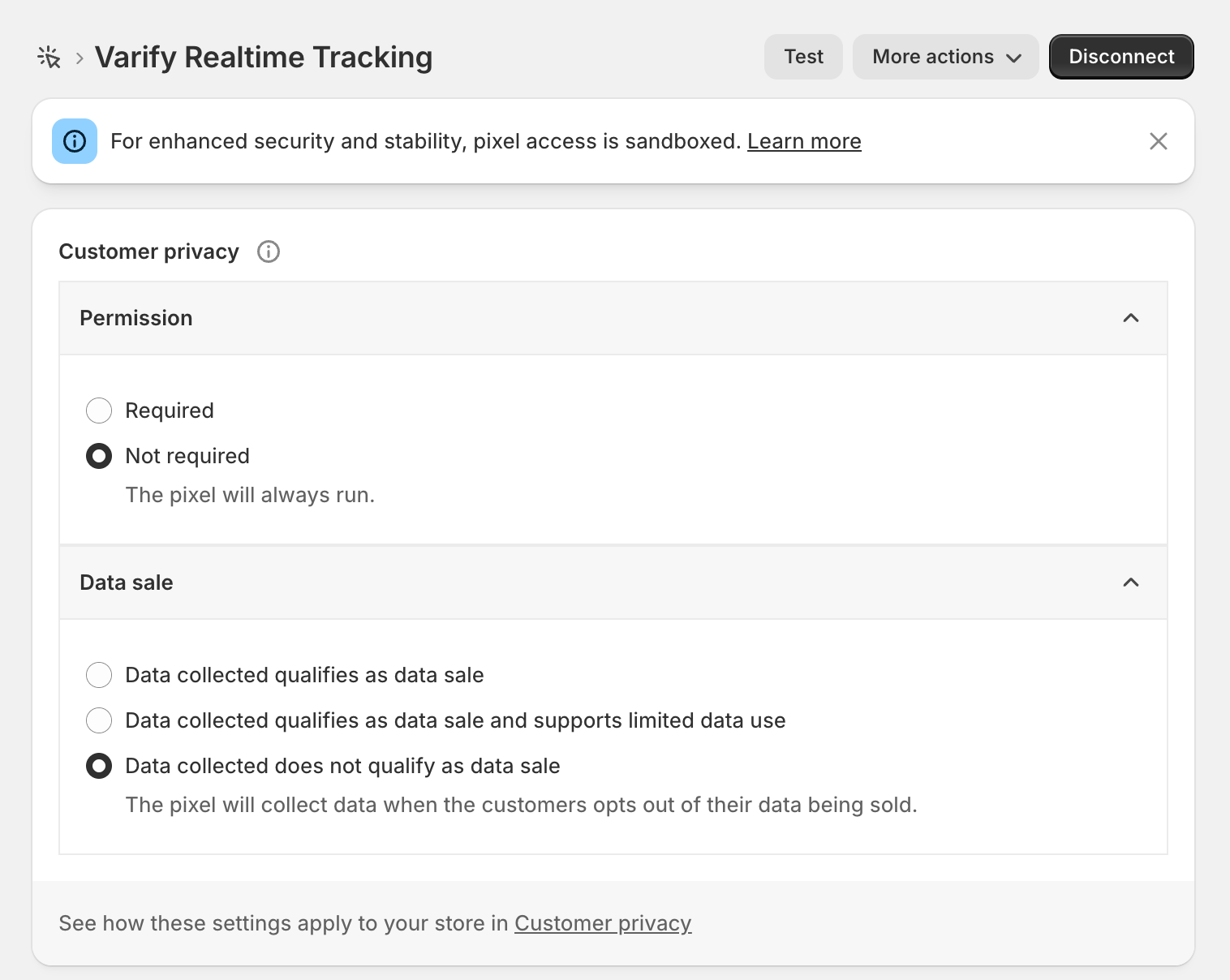
After you've created the pixel, first open the „Customer Privacy“ section and set "Data Sale" to "Data collected does not qualify as a data sale." Varify does not sell data and tracks only aggregated values for your experiment analyses.
For „Permission,“ you should select „Not required“ if you want to track without user consent—as specified earlier in the tracking setup. If, on the other hand, you're tracking with user consent, you can leave the setting as "Required."
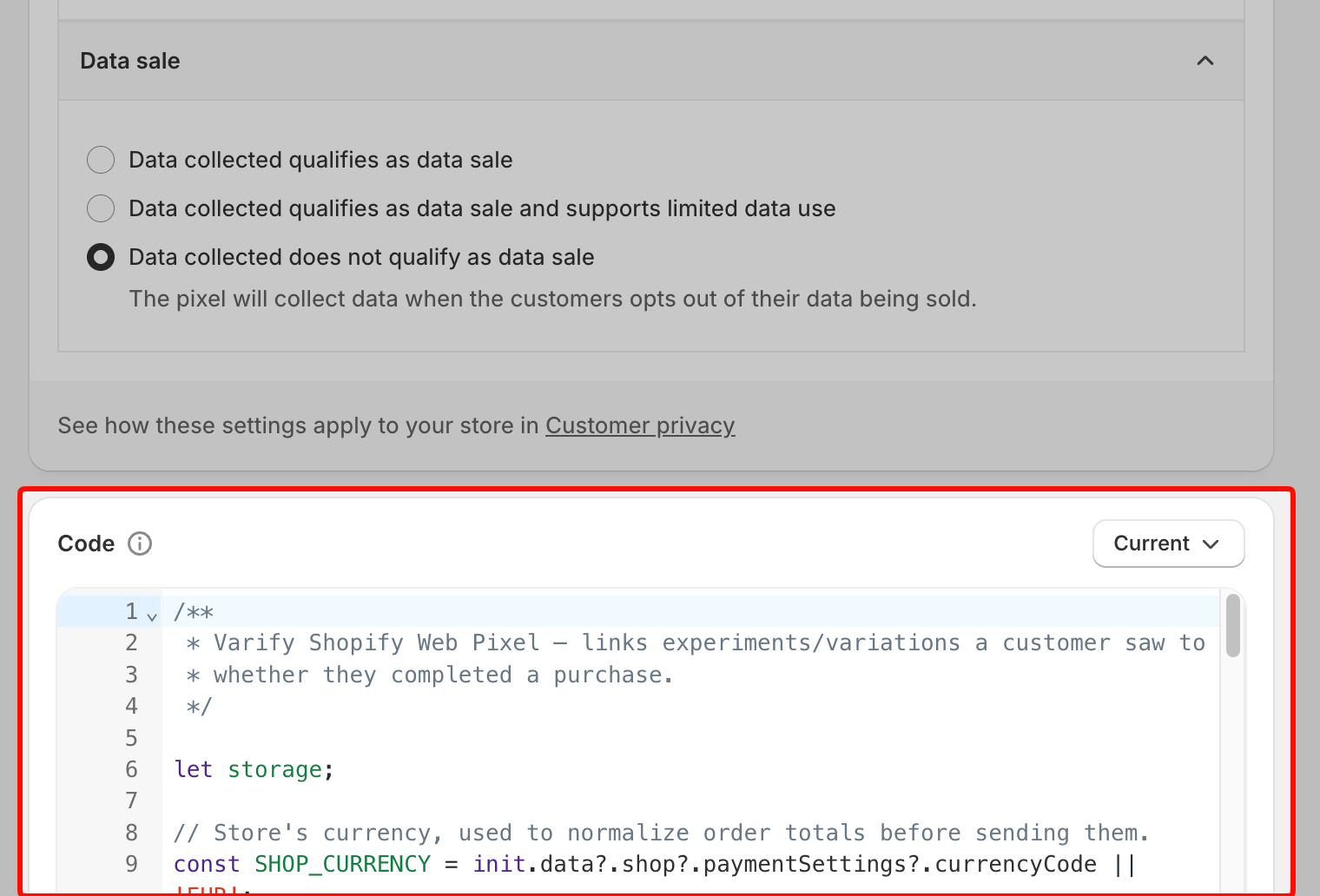
Next, copy the code highlighted below this paragraph and paste it under "Code."
/**
 * Varify Shopify Web Pixel — links experiments/variations a customer saw to
 * whether they completed a purchase.
 */

let storage;

// Store's currency, used to normalize order totals before sending them.
const SHOP_CURRENCY = init.data?.shop?.paymentSettings?.currencyCode || 'EUR';

// Free FX API, used only when an order's currency differs from the store's.
const FX_API = 'https://api.frankfurter.dev/v1/latest';
const FX_TTL_MS = 6 * 60 * 60 * 1000;
const FX_TIMEOUT_MS = 2000;

const VARIFY_INGESTION_ENDPOINT = 'https://w.varify.io/events';

// One id per pixel session, reused for every event this pixel sends.
const pixelSessionId = crypto.randomUUID();

// Reads this pixel's saved data (experiments seen, anonymous id, etc.),
// cached in-memory after the first read.
async function getVarifyData() {
  if (storage) {
    return storage;
  }
  storage = (async () => {
    try {
      const raw = await browser.localStorage.getItem('varify-data');
      return raw ? JSON.parse(raw) : {};
    } catch (error) {
      // Don't cache a broken read — retry from scratch next time.
      storage = undefined;
      console.error('Varify: error reading local storage', error);
      return {};
    }
  })();
  return storage;
}

// Units of `currency` per 1 unit of the store's currency, or null if
// unavailable — callers should skip sending rather than guess a rate.
async function getFxRate(currency) {
  const cacheKey = `varify-fx-${SHOP_CURRENCY}-${currency}`;

  try {
    const cached = await browser.localStorage.getItem(cacheKey);
    if (cached) {
      const { rate, ts } = JSON.parse(cached);
      if (rate && ts && Date.now() - ts < FX_TTL_MS) {
        return rate;
      }
    }
  } catch (error) {
    // Fall through and fetch fresh below.
  }

  try {
    const url = `${FX_API}?from=${encodeURIComponent(SHOP_CURRENCY)}&to=${encodeURIComponent(currency)}`;

    let res;
    if (typeof AbortController === 'function') {
      const controller = new AbortController();
      const timer = setTimeout(() => controller.abort(), FX_TIMEOUT_MS);
      try {
        res = await fetch(url, { signal: controller.signal });
      } finally {
        clearTimeout(timer);
      }
    } else {
      res = await fetch(url);
    }

    if (!res.ok) {
      console.warn(`Varify: FX API returned ${res.status} for ${currency}.`);
      return null;
    }

    const json = await res.json();
    const rate = json?.rates?.[currency];

    if (typeof rate !== 'number' || !isFinite(rate) || rate <= 0) {
      console.warn(`Varify: FX API gave no usable rate for ${currency}.`, json);
      return null;
    }

    await browser.localStorage.setItem(
      cacheKey,
      JSON.stringify({ rate, ts: Date.now() }),
    );
    return rate;
  } catch (error) {
    console.warn(`Varify: FX lookup failed for ${currency}.`, error);
    return null;
  }
}

// Varify's endpoint only accepts flat text/number values, so a list of
// experiments becomes two comma-separated strings (ids and variation ids).
function flattenExperiments(entries) {
  return {
    experiment_ids: entries.map((entry) => entry.experimentId).join(','),
    variation_ids: entries
      .map((entry) =>
        entry.variationId === null ? 'original' : entry.variationId,
      )
      .join(','),
  };
}

// Edge's identifier also contains "Chrome/", so it must be checked first.
function detectBrowser(userAgent) {
  if (userAgent.includes('Firefox/')) return 'Firefox';
  if (userAgent.includes('Edg/')) return 'Edge';
  if (userAgent.includes('Chrome/')) return 'Chrome';
  if (userAgent.includes('Safari/')) return 'Safari';
  return 'Unknown';
}

function detectDevice(userAgent) {
  if (/Tablet|iPad/i.test(userAgent)) return 'tablet';
  if (/Mobi|Android/i.test(userAgent)) return 'mobile';
  return 'desktop';
}

function detectOs(userAgent) {
  if (/iPhone|iPad|iPod/i.test(userAgent)) return 'iOS';
  if (userAgent.includes('Android')) return 'Android';
  if (userAgent.includes('Win')) return 'Windows';
  if (userAgent.includes('Mac')) return 'macOS';
  if (userAgent.includes('Linux')) return 'Linux';
  return 'Unknown';
}

// Browser timezone, e.g. "Europe/Berlin" — not GPS or IP-based location.
function detectLocation() {
  try {
    return Intl.DateTimeFormat().resolvedOptions().timeZone || undefined;
  } catch {
    return undefined;
  }
}

// Non-identifying browser/page details, added to every event. The pixel
// sandbox may not expose all of these — each lookup is best-effort and
// simply omitted if unavailable.
function collectBrowserInfo() {
  const info = {};

  try {
    const userAgent =
      typeof navigator !== 'undefined' ? navigator.userAgent : undefined;
    if (typeof userAgent === 'string') {
      info.userAgent = userAgent;
      info.browser = detectBrowser(userAgent);
      info.device = detectDevice(userAgent);
      info.os = detectOs(userAgent);
    }
  } catch (error) {
    // Not available in this environment.
  }

  try {
    if (typeof window !== 'undefined' && window.location) {
      info.path = window.location.pathname;
      info.domain = window.location.hostname;
    }
  } catch (error) {
    // Not available in this environment.
  }

  const location = detectLocation();
  if (location) {
    info.location = location;
  }

  return info;
}

// Sends one event to Varify. Never throws — failures are logged and
// swallowed so the pixel/checkout is never affected. Falls back to reading
// the anonymous id from local storage if one wasn't passed in, and returns
// whichever id was actually used so the caller can persist it.
async function sendVarifyEvent(name, teamSqid, anonymousId, properties) {
  const anonymousIdWithFallback =
    anonymousId || localStorage.getItem('varify_anonymous_id');

  if (!teamSqid || !anonymousIdWithFallback) {
    console.warn(
      `Varify: skipping "${name}" event — missing teamSqid or anonymousId.`,
      'Team Sqid',
      teamSqid,
      'Anonymous ID',
      anonymousIdWithFallback,
    );
    return anonymousIdWithFallback;
  }

  try {
    await fetch(VARIFY_INGESTION_ENDPOINT, {
      method: 'POST',
      keepalive: true,
      headers: {
        'Content-Type': 'application/json',
      },
      body: JSON.stringify({
        events: [
          {
            id: crypto.randomUUID(),
            name,
            teamId: String(teamSqid),
            anonymousId: anonymousIdWithFallback,
            sessionId: pixelSessionId,
            properties: { ...collectBrowserInfo(), ...properties },
          },
        ],
      }),
    });
  } catch (error) {
    console.error(`Varify: error sending "${name}" event`, error);
  }

  return anonymousIdWithFallback;
}

// Fired by Varify's tracking script when a customer is shown an experiment.
// Remembers it locally so it can be attached to a later checkout event.
analytics.subscribe('varify', async (event) => {
  const {
    varify_experimentId,
    varify_variationId,
    varify_anonymousId,
    teamId,
    teamSqid,
    storageType = 'localStorage',
  } = event.customData || {};

  if (!varify_experimentId || !teamId || !teamSqid) {
    console.warn('Varify: event missing experimentId or teamId. Event:', event);
    return;
  }

  const validVariationId =
    varify_variationId !== undefined ? varify_variationId : null;

  const existingData = await getVarifyData();

  if (!existingData.data) {
    existingData.data = [];
  }

  const experimentEntry = {
    experimentId: varify_experimentId,
    variationId: validVariationId,
    timestamp: Date.now(),
  };

  existingData.data = existingData.data.filter(
    (entry) => entry.experimentId !== varify_experimentId,
  );

  existingData.data.push(experimentEntry);
  existingData.teamId = teamId;
  existingData.teamSqid = teamSqid;
  existingData.storageType = storageType;

  // Only present once Varify's tracking script has finished loading —
  // don't overwrite a previously-saved id with nothing.
  if (varify_anonymousId) {
    existingData.anonymousId = varify_anonymousId;
  }

  await browser.localStorage.setItem(
    'varify-data',
    JSON.stringify(existingData),
  );
});

// How long an experiment exposure counts toward a later purchase.
const WINDOW_MS = 28 * 24 * 60 * 60 * 1000;

const pruneEntries = (entries) => {
  const threshold = Date.now() - WINDOW_MS;
  return (entries || []).filter(
    (entry) =>
      entry.timestamp && entry.experimentId && entry.timestamp >= threshold,
  );
};

// Fired by Shopify whenever a product is added to the cart (online store
// pages, not checkout). Sent as "add_to_cart" so it can be used as a goal.
analytics.subscribe('product_added_to_cart', async (event) => {
  const existingData = await getVarifyData();
  if (!existingData.data || existingData.data.length === 0) return;

  existingData.data = pruneEntries(existingData.data);
  if (existingData.data.length === 0) return;

  const line = event.data?.cartLine;
  const productId = line?.merchandise?.product?.id?.split('/').pop();
  const variantId = line?.merchandise?.id?.split('/').pop();

  await sendVarifyEvent(
    'add_to_cart',
    existingData.teamSqid,
    existingData.anonymousId,
    {
      ...flattenExperiments(existingData.data),
      product_id: productId,
      variant_id: variantId,
      quantity: line?.quantity,
      value: line?.cost?.totalAmount?.amount,
      currency: line?.cost?.totalAmount?.currencyCode,
    },
  );
});

analytics.subscribe('checkout_started', async (event) => {
  const existingData = await getVarifyData();
  if (!existingData.data || existingData.data.length === 0) {
    return;
  }

  existingData.data = pruneEntries(existingData.data);

  await browser.localStorage.setItem(
    'varify-data',
    JSON.stringify(existingData),
  );

  if (existingData.data.length > 0) {
    const resolvedAnonymousId = await sendVarifyEvent(
      'checkout_started',
      existingData.teamSqid,
      existingData.anonymousId,
      flattenExperiments(existingData.data),
    );

    // Persist the fallback id, if used, so it doesn't need re-deriving.
    if (
      resolvedAnonymousId &&
      resolvedAnonymousId !== existingData.anonymousId
    ) {
      existingData.anonymousId = resolvedAnonymousId;
      await browser.localStorage.setItem(
        'varify-data',
        JSON.stringify(existingData),
      );
    }
  }

  // Warm the rate while the customer is still typing.
  const currency = event.data?.checkout?.currencyCode;
  if (currency && currency !== SHOP_CURRENCY) {
    getFxRate(currency);
  }
});

analytics.subscribe('checkout_completed', async (event) => {
  const orderId = event.data?.checkout?.order?.id;
  const money = event.data?.checkout?.subtotalPrice;
  let orderRevenue = money?.amount;
  const orderCurrency = money?.currencyCode;

  // 0 is a valid revenue (100% discount) and must not count as missing.
  if (!orderId || orderRevenue == null || !orderCurrency) {
    console.warn(
      'Varify: checkout_completed missing orderId, revenue or currency.',
    );
    return;
  }

  // subtotalPrice is presentment currency and the event carries no rate or
  // shop-money amount. Convert to shop currency here, or skip.
  if (orderCurrency !== SHOP_CURRENCY) {
    const rate = await getFxRate(orderCurrency);
    if (!rate) {
      console.warn(
        `Varify: skipping order ${orderId} — ${orderRevenue} ${orderCurrency}, no FX rate available.`,
      );
      return;
    }
    const converted = +(orderRevenue / rate).toFixed(2);
    console.info(
      `Varify: converted order ${orderId} — ${orderRevenue} ${orderCurrency} @ ${rate} -> ${converted} ${SHOP_CURRENCY}.`,
    );
    orderRevenue = converted;
  }

  const parsedData = await getVarifyData();
  if (!parsedData.data || parsedData.data.length === 0 || !parsedData.teamId) {
    console.warn('Varify: no valid data in local storage.');
    return;
  }

  // The order-status page refires checkout_completed on every visit.
  if (!Array.isArray(parsedData.sentOrders)) {
    parsedData.sentOrders = [];
  }
  if (parsedData.sentOrders.includes(orderId)) {
    return;
  }

  parsedData.data = pruneEntries(parsedData.data);
  if (parsedData.data.length === 0) {
    return;
  }

  const lineItems = event.data?.checkout?.lineItems;
  let cartProducts = [];

  if (lineItems && Array.isArray(lineItems)) {
    cartProducts = lineItems
      .map((item) => {
        const productId = item.variant?.product?.id?.split('/').pop();
        const variantId = item.variant?.id?.split('/').pop();

        if (productId && variantId) {
          return {
            productId,
            variantId,
          };
        }
        return null;
      })
      .filter((p) => p !== null);
  }

  const resolvedAnonymousId = await sendVarifyEvent(
    'checkout_completed',
    parsedData.teamSqid,
    parsedData.anonymousId,
    {
      ...flattenExperiments(parsedData.data),
      order_id: String(orderId),
      value: orderRevenue,
      currency: SHOP_CURRENCY,
      cart_product_ids: cartProducts.map((p) => p.productId).join(','),
      cart_variant_ids: cartProducts.map((p) => p.variantId).join(','),
    },
  );

  // Persist the fallback id, if used, so it doesn't need re-deriving.
  if (resolvedAnonymousId) {
    parsedData.anonymousId = resolvedAnonymousId;
  }

  parsedData.sentOrders = [...parsedData.sentOrders, orderId].slice(-50);
  await browser.localStorage.setItem('varify-data', JSON.stringify(parsedData));
});
After you've added the code, click "Connect" in the menu at the top. Your Shopify tracking is now set up.
Add the Shopify goals in Varify
The custom pixel only sends the events. To use them in your experiments, register each Shopify event as a Custom Event Goal in Varify first. You only have to do this once per goal. Afterwards, you can select the goals in any experiment.
The goal name is up to you. The event name, however, must be exactly the same as the name of the event the pixel sends, including upper and lower case and underscores. Otherwise Varify can't match the events and the goal won't record any data.
| Shopify event | Event name in Varify (exactly as sent by the pixel) | Example goal name |
|---|---|---|
product_added_to_cart | add_to_cart | Add to Cart |
checkout_started | checkout_started | Begin checkout |
checkout_completed | checkout_completed | Purchase |
The pixel sends the Shopify event product_added_to_cart to Varify as add_to_cart. Use add_to_cart as the event name in Varify.
Step 1: Create a new Custom Event Goal
- Go to „Goals“ in the sidebar on the left and create a new goal.
- Select the goal type „Custom event“ and click „Next.“
Step 2: Enter goal name and event name
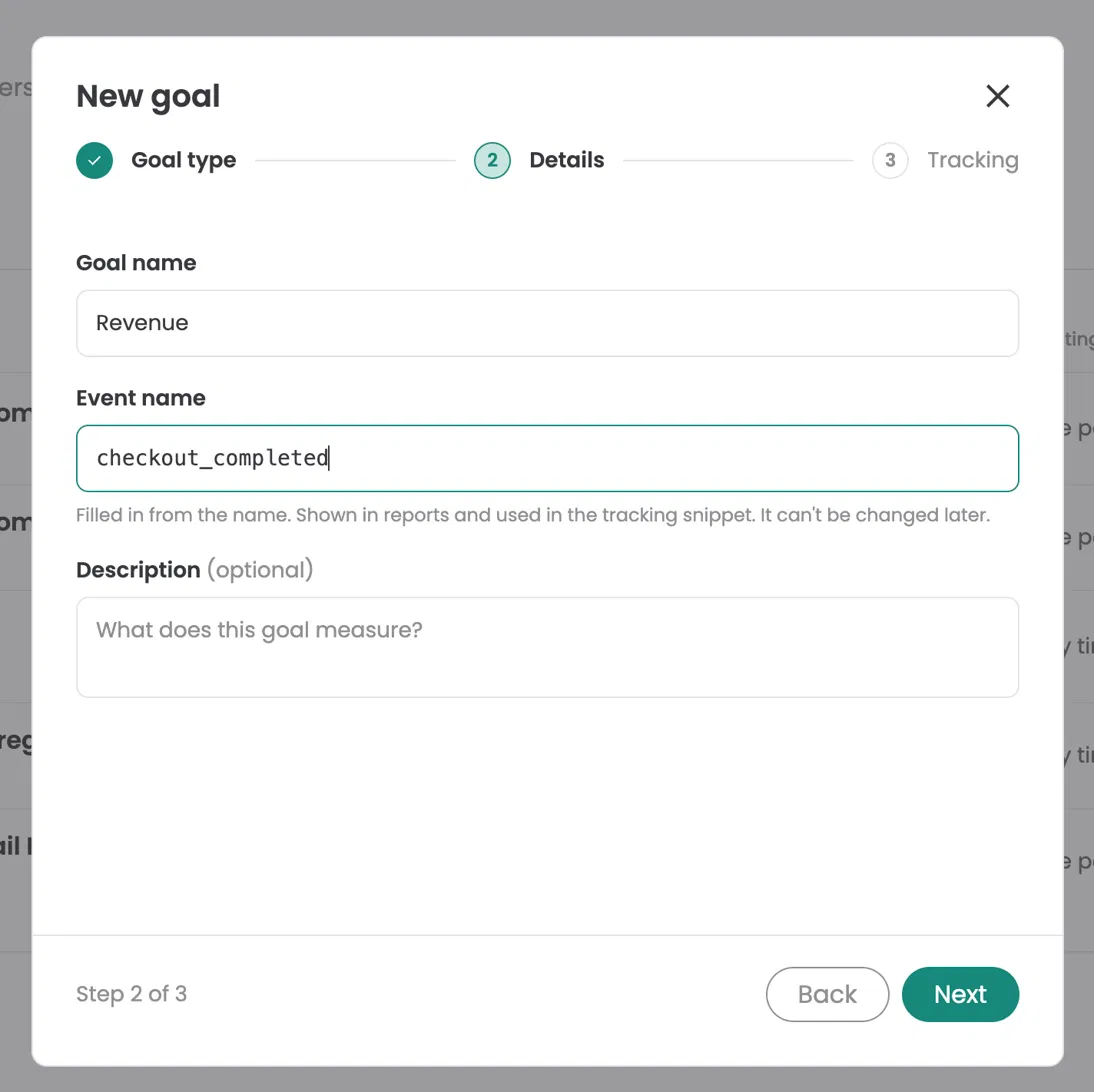
- Enter any goal name you like, for example „Purchase.“ This name is shown in the reports.
- Enter the event name exactly as shown in the table above, for example
checkout_completed.
The event name is filled in automatically from the goal name. Overwrite it with the exact event name from the table. It can't be changed later, so check it before you continue.
Step 3: Choose how often it counts and save
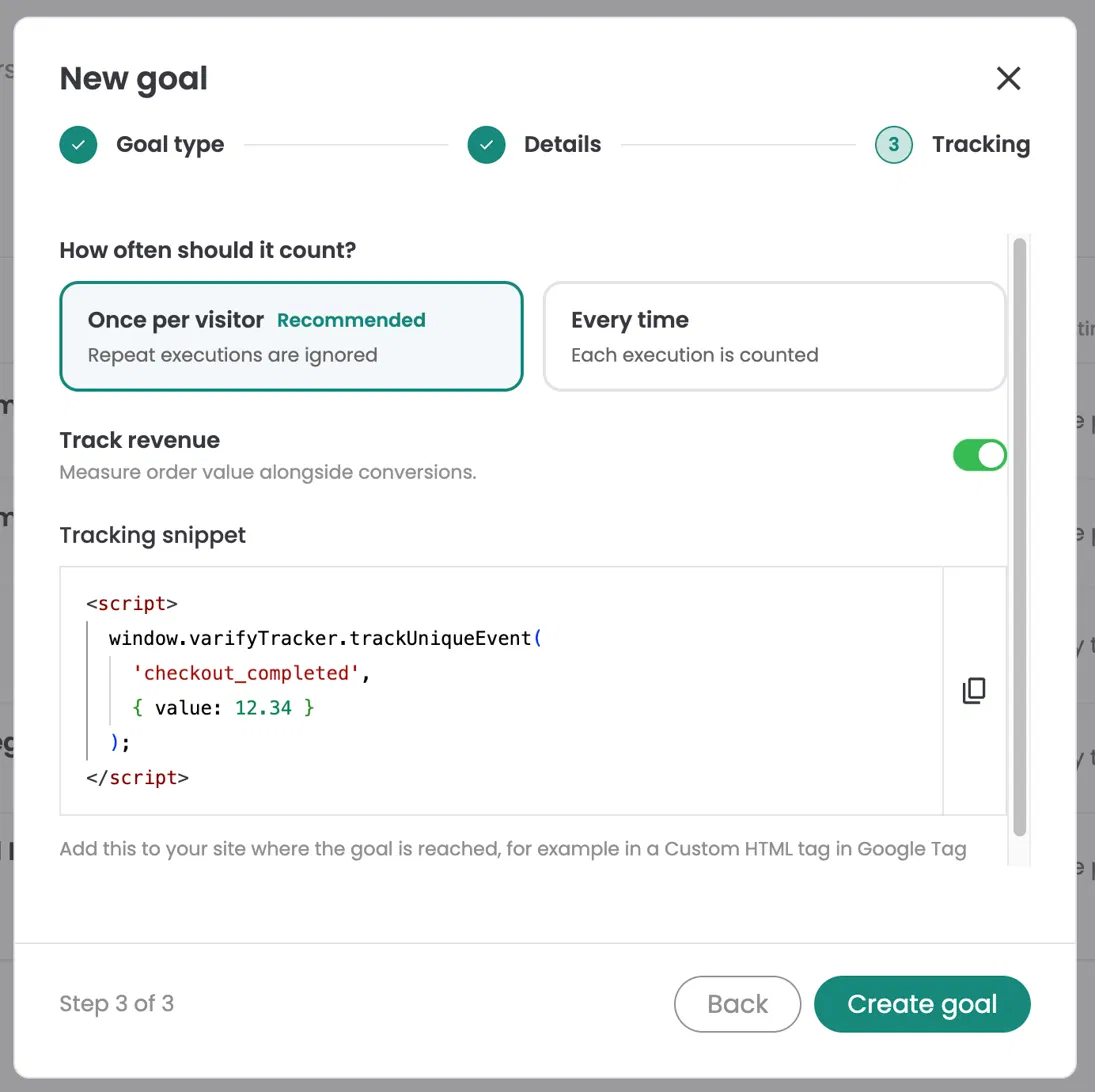
In step 3, choose how often the goal should count („Once per visitor“ or „Every time“). For a normal conversion goal like „Purchase,“ keep „Once per visitor.“ Then click „Create goal.“
The tracking snippet shown in this step is not needed for the Shopify goals, because the custom pixel already sends the event.
Measure revenue (revenue per visitor)
To analyze revenue, for example revenue per visitor, create another Custom Event Goal:
- Name it, for example, „Revenue.“
- Enter
checkout_completedas event name, the same as for „Purchase.“ - In step 3, switch on „Track revenue“ („Measure order value alongside conversions“).
- Click „Create goal.“
Add the goals to your experiment
Once the Custom Event Goals are created, you can add them to an experiment:
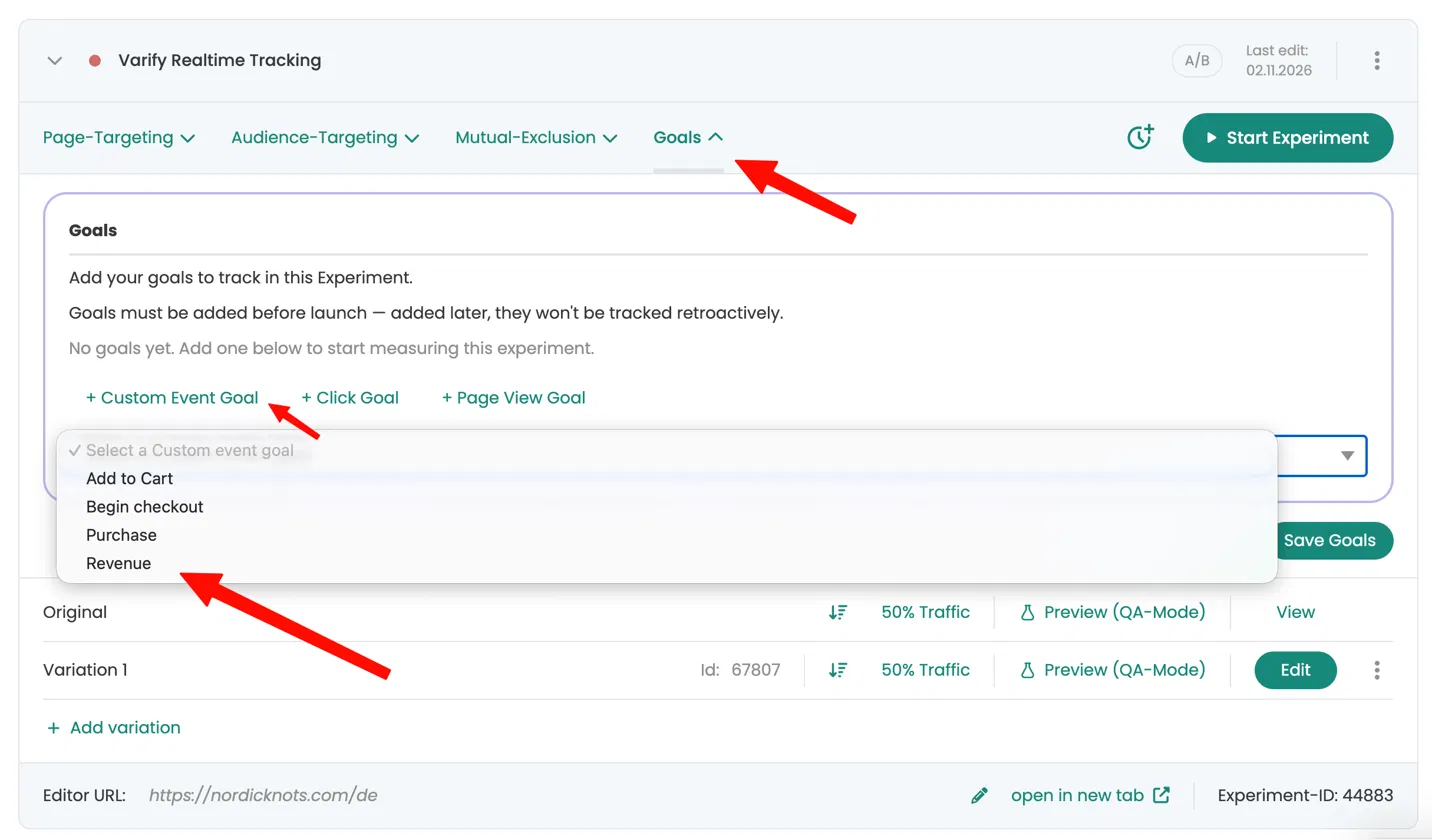
- Open your experiment and go to the „Goals“ tab.
- Click „+ Custom Event Goal“ and select your goal from the list, for example „Purchase“ or „Revenue.“
- Click „Save Goals.“
The goal now appears in the list, marked as „Custom event.“
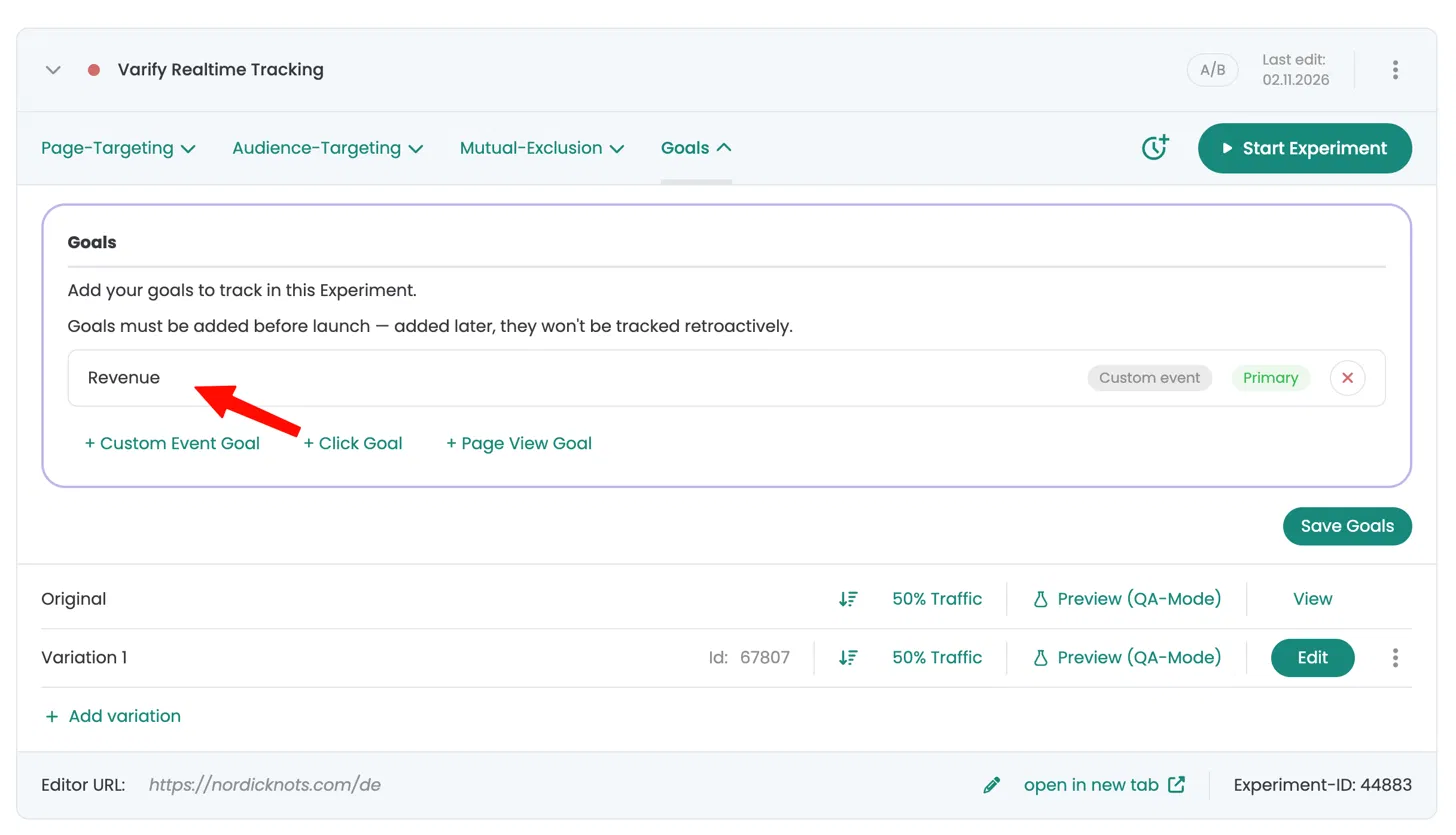
Add your goals before you start the experiment. Goals added later are not tracked retroactively.