Redirect & Split URL Testing
In short
With the redirect feature, you can redirect incoming users from one or more pages to another page. If you use this feature in an A/B test, you can run a „redirect test.“ This allows you, for example, to test your current page against a new version of the page that’s accessible via a different URL.
In principle, there are two methods available to you for carrying out a redirect test.
Method 1: Create redirect test in the editor
This method is only suitable if you want to forward exactly one website to another website.
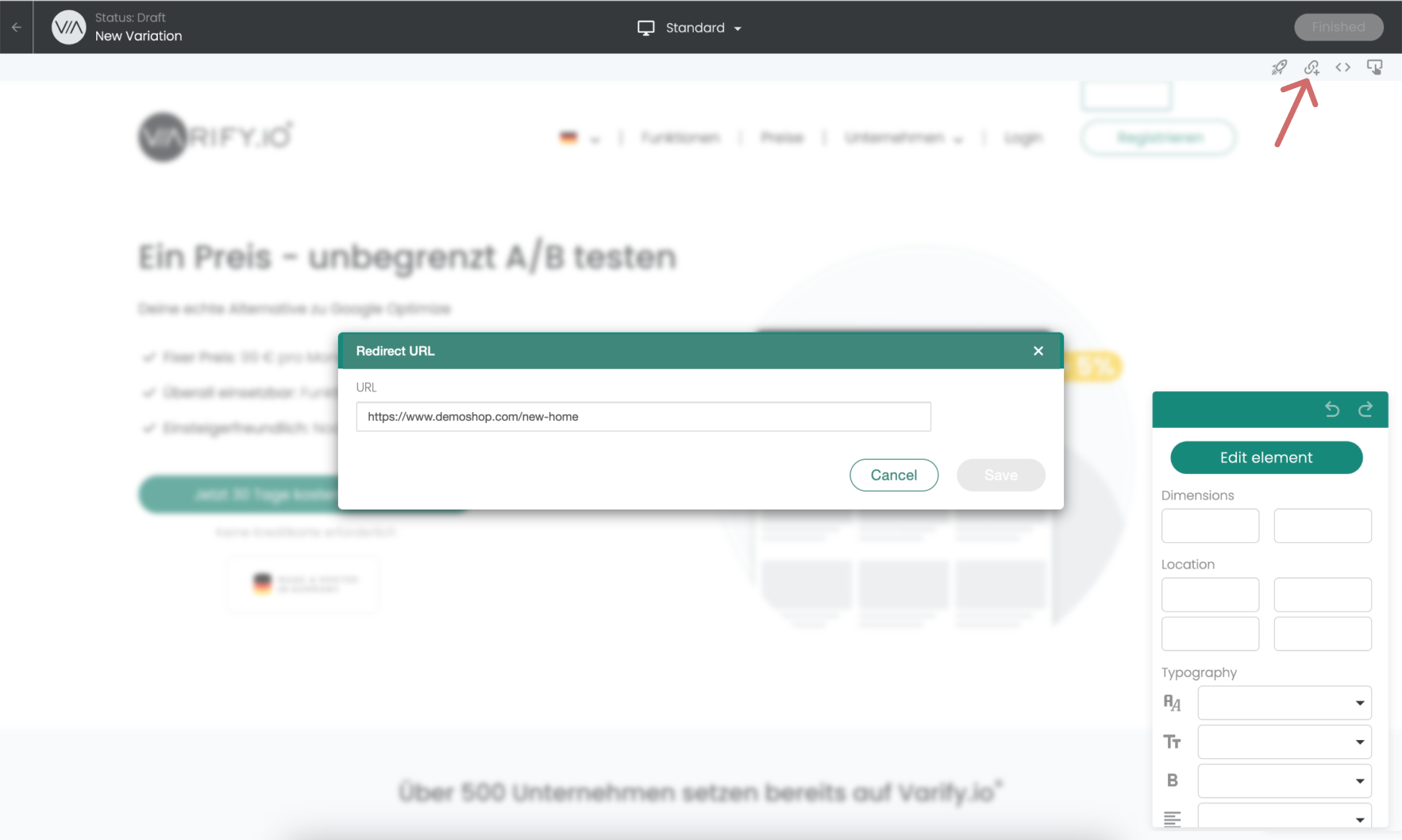
Create a new variation and click on the “Redirect URL” icon. Then enter the URL to which incoming users are to be redirected in the URL input field. When redirecting to the new target URL, existing URL parameters of the original URL called up are retained, such as UTM parameters, and are appended to the new redirect URL.
Important Notice: When entering the URL, be sure to enter the full, absolute URL.
-> „https://www.demoshop.com/new-home“ and not „demoshop.com/new-home“
Contact us if you have any questions: https://varify.io/contact/
Method 2: Define redirect via JavaScript
For more complex redirects, you can define the target URL in JavaScript. Build the target URL and pass it to redirect(). Varify takes care of tracking on the target page, so you no longer need to add experiment or variation IDs to the URL yourself.
redirect(url.toString());
Example 1: Forward each URL to itself with an additional URL parameter
Example:
Original page:
https://www.test.com/products/product1
Variation:
https://www.test.com/products/product1?view=2
const url = new URL(window.location.href);
url.searchParams.set('view', '2');
redirect(url);
Example 2: Forward all URLs to the same URL with an additional sub-path
Example:
Original page:
https://www.test.com/products/product1
Variation:
https://www.test.com/products/product1/new
const url = new URL(window.location.href);
url.pathname = url.pathname.replace(/\/+$/, '') + '/new';
redirect(url.toString());
Example 3: Forward all URLs to the same URL on a different subdomain
Example:
Original page:
https://www.test.com/products/product1
Variation:
https://subdomain.test.com/products/product1
const url = new URL(window.location.href);
url.hostname = 'subdomain.test.com';
redirect(url.toString());
Page targeting stays as before: enter the URL you redirect from, not the target URL.
Set up page targeting
After you have created and saved the redirect URL in the visual editor, you can define the settings for the split test in the Varify.io dashboard.
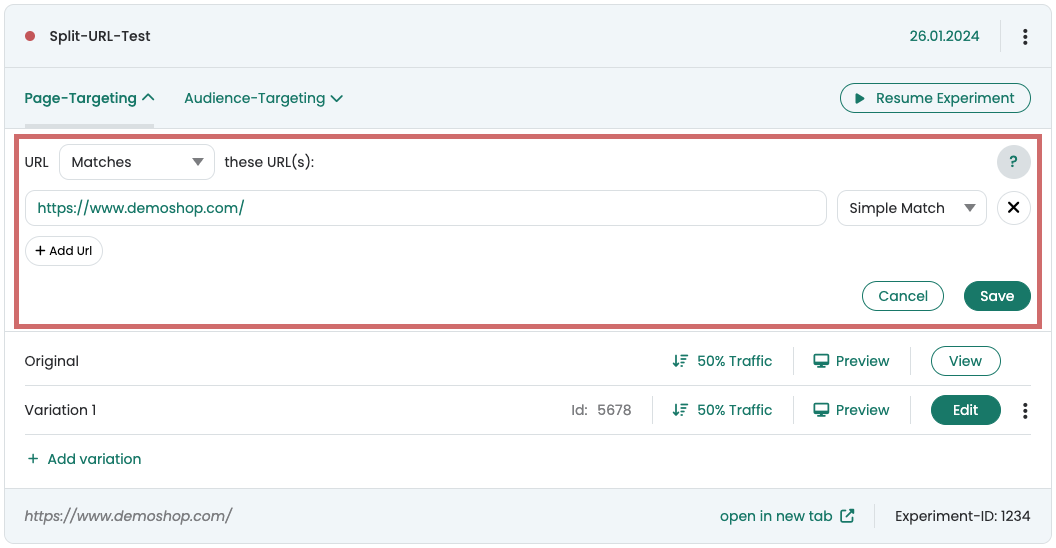
- In Page Targeting, enter the URL on which your experiment should take place. This is the URL from which you want to redirect to the redirect URL. -> Do NOT enter the redirect URL!
- Set the matching type to „Simple Match“
- Set the desired traffic distribution for your variation
- Start the redirect experiment
Example: The screenshot shows the setting that 50% users who come to https://www.demoshop.com/ are now redirected to the URL that was previously entered in the created variation under Redirect URL.
Before starting the experiment, check whether the forwarding works correctly and does not create any endless loops.
Redirect variation creates an infinite loop
Under certain circumstances, page targeting can create an endless loop for redirected users. However, this will not happen if your newly created page has its own URL.
For example, if your redirect URL only contains one additional parameter to the original URL:
Original: https://www.demoshop.com
Redirect: https://www.demoshop.com?page=newlp
You can find out how to easily solve the problem here: Avoid endless loops in url split tests
Evaluation of the split URL test
Evaluation in Varify.io
With the Varify.io Google Analytics 4 Connection, you can easily display your results directly in your Varify.io dashboard. You can find out how to do this here: To the result evaluation in Varify.io
Evaluation in GA4
You can analyze the data of the variations of your A/B test in GA4 with the Explorative Data Analysis. You can find more information here: To evaluate the results in GA4