Responsive Device Switcher or Add CSS/JS does not work
Framing restrictions block the Responsive Device Switcher and Add CSS/JS. Use the Chrome extension or adjust X-Frame-Options.
How to recognize the error
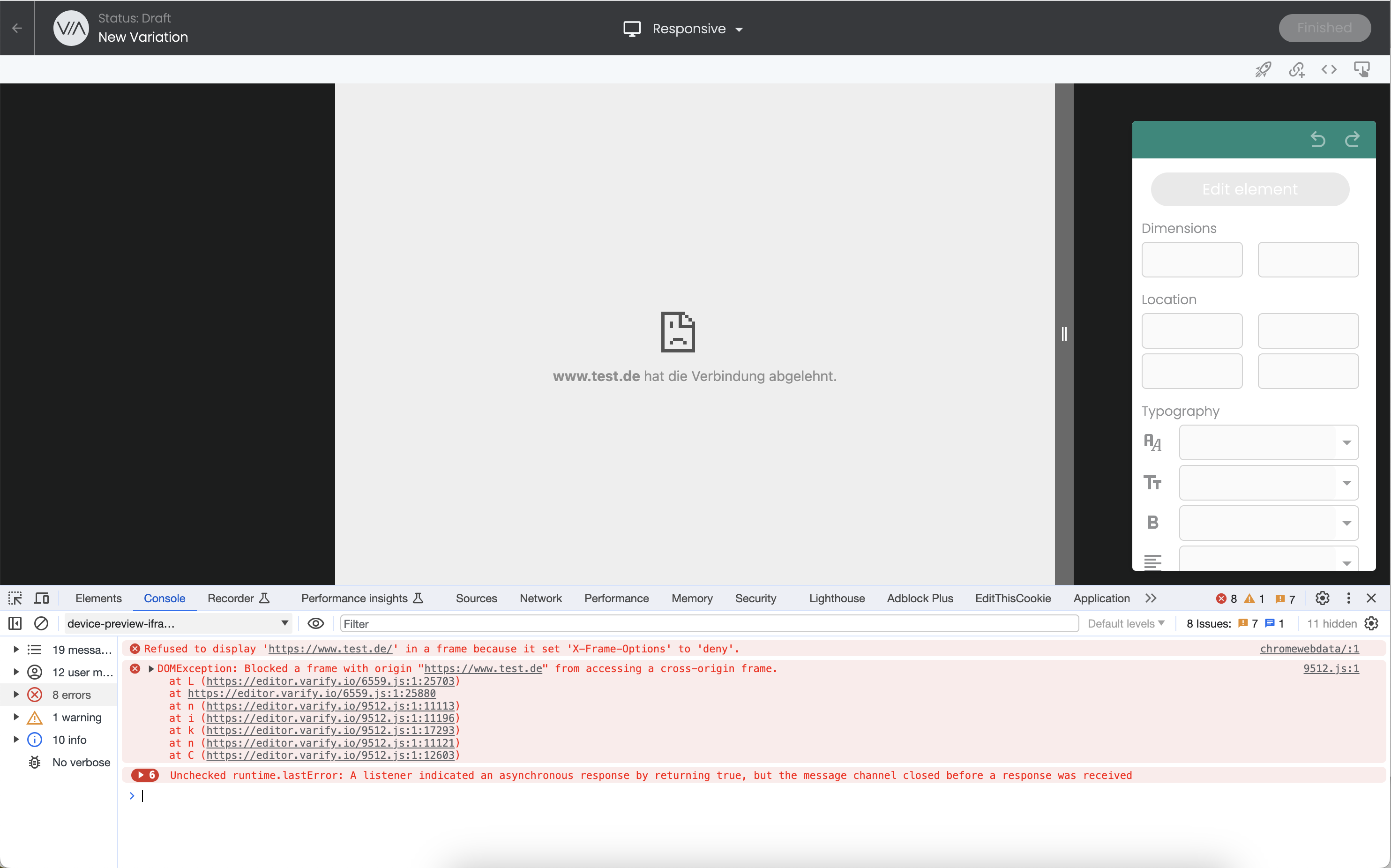
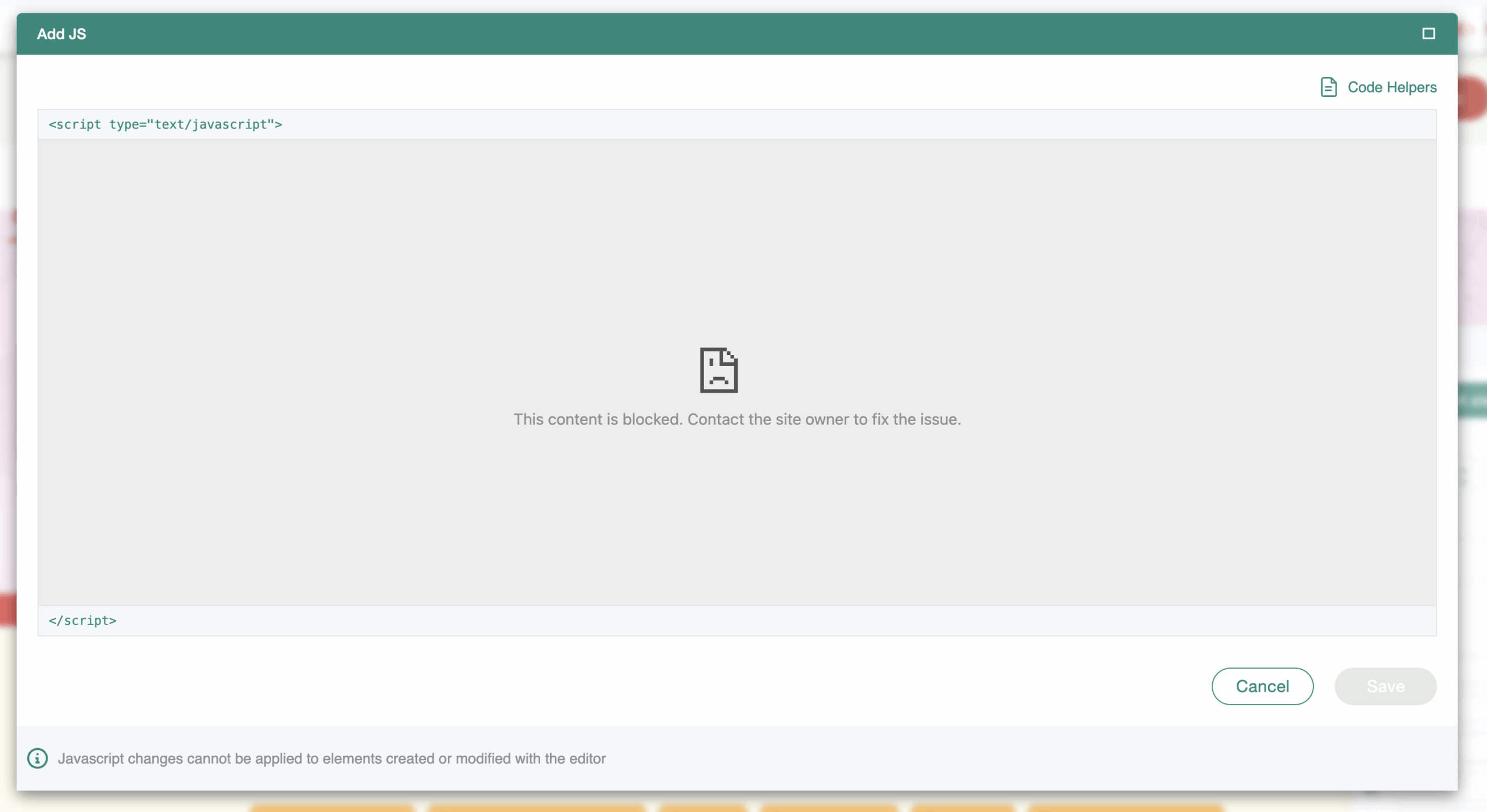
If you want to display and edit your website responsively or you want to add CSS/JavaScript in your variant, but your website does not load and displays an error, then it is due to the framing restrictions.
How to fix the error
Solution 1: Using the Varify.io® Chrome Extension
So that you can still create your variants, you have the option of bypassing this framing restriction with the Varify.io® Chrome Extension.
- Download the Varify® Chrome Extension
- Activate it in your browser and store your Varify® code snippet
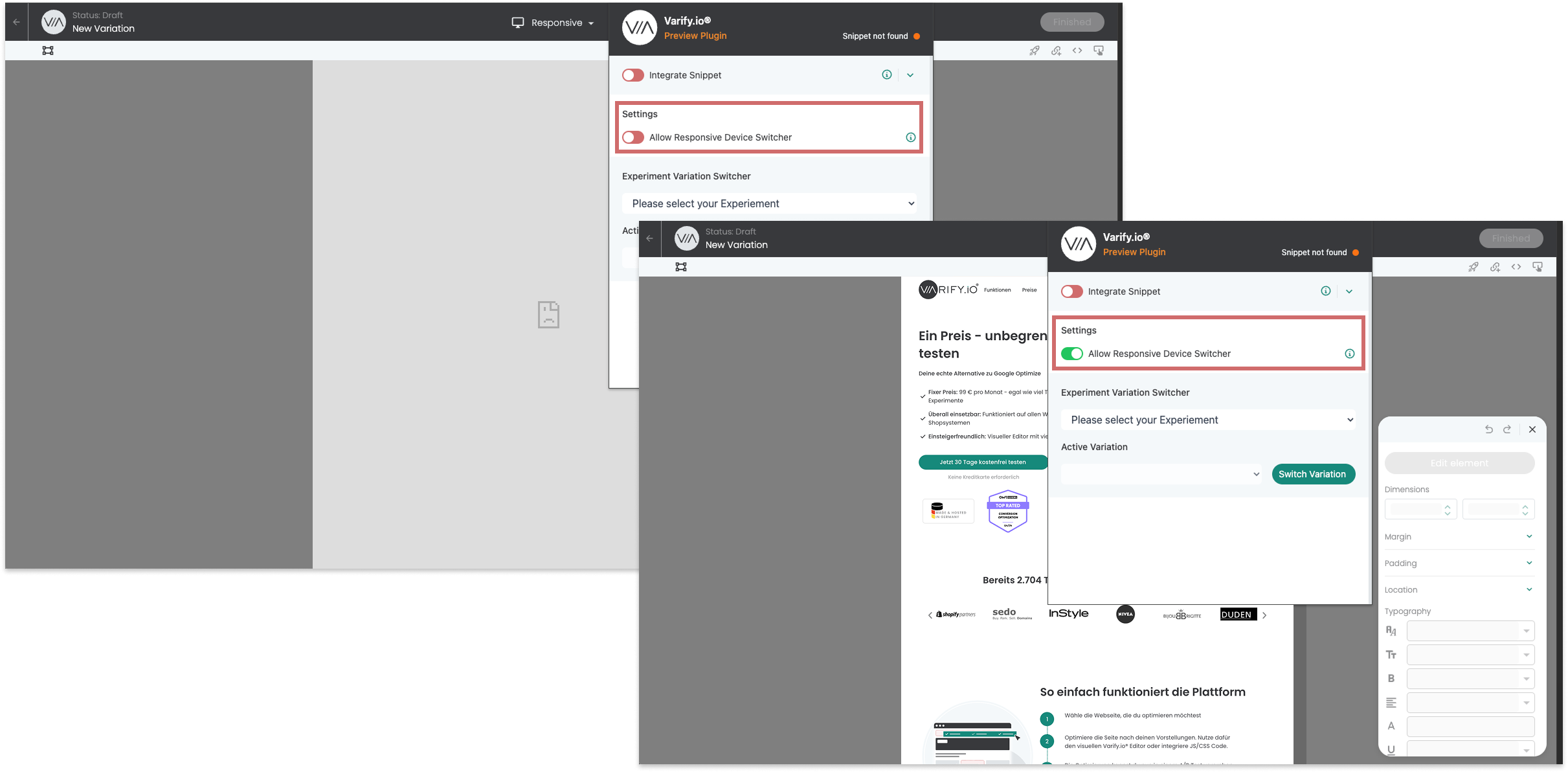
- Activate the "Allow Responsive Device Switcher" switch
- Reload the page - Ready!
Now everything should work as expected.
A more detailed explanation of installation and activation, as well as other functions, can be found here: Varify® Chrome browser extension
Solution 2: Customizing the X-Frame options on your own website
If you see an error message like in the screenshot above, a framing restriction is not allowing you to load the page in the responsive device switcher.
The normal desktop view of the visual editor is not affected by framing restrictions.
If your page is delivered with the response header X-Frame-Options with the value "deny", responsive editing cannot be used.
A sensible solution in this case would be to relax the restriction to X-Frame-Options: "sameorigin".
X-Frame-Options: "sameorigin" allows your pages to be embedded in a frame from your domain, but does not allow them to be embedded from other websites.