No data after 24 hours
No data 24 hours after the start: what to check in the tag manager, the snippet and the tracking setup.
How to recognize the error
If no data has arrived in your tracking tool or the result page 24 hours after starting the experiment, there is usually a problem. Please try the following possible solutions.
How to fix the error
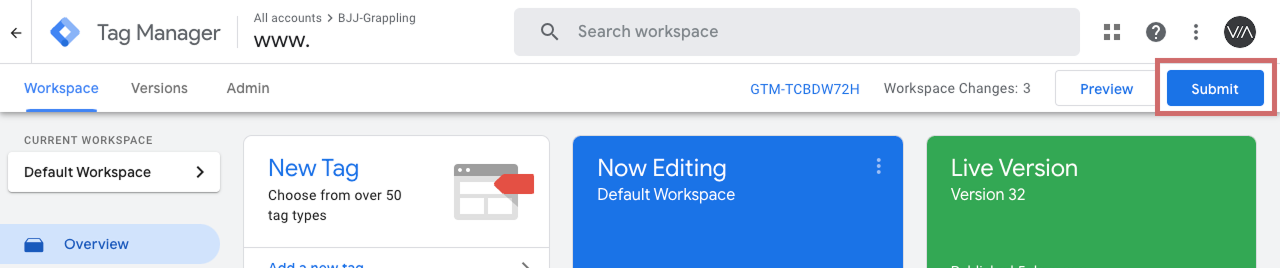
Option 1: Google Tag Manager setup not set up/published (manual setup)
If you use manual tracking integration, you must make certain settings in Google Tag Manager (GTM).
Important: The customized container must be published for tracking to work.
Therefore, check:
- Whether the Google Tag Manager has been set up according to the instructions (Manual Google Tag Manager tracking setup).
- Whether all changes have been published.
Option 2: Tracking Activation Script is not triggered
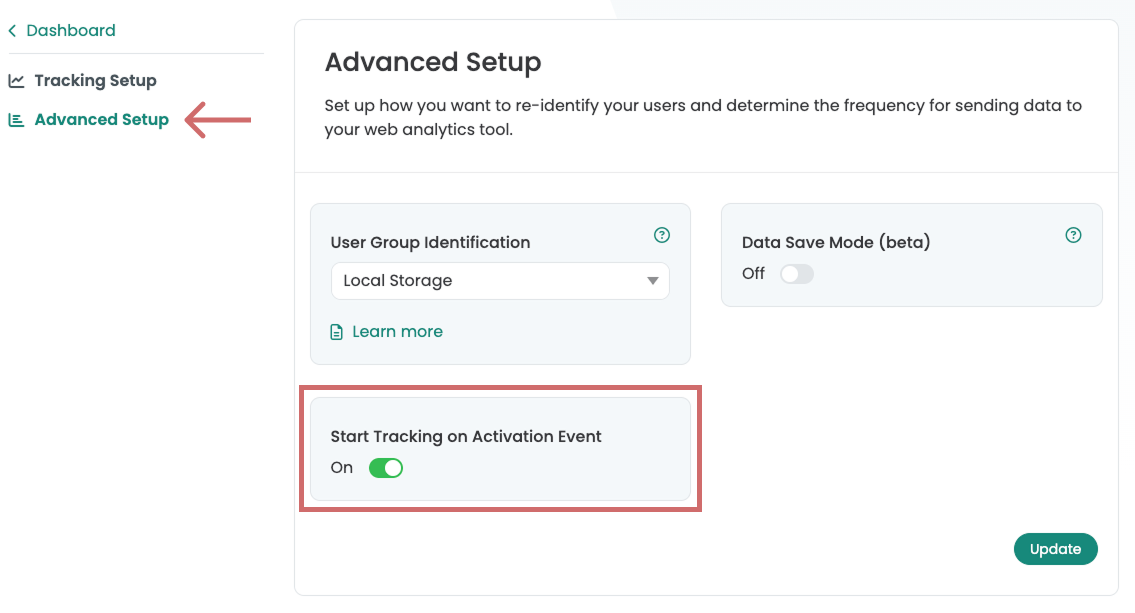
If no tracking data arrives in your analytics tool, the setting "Start Tracking on Activation Event" must be activated in the Advanced Setup. This separates variant playout from tracking.
Possible causes & solutions:
- Tracking Activation Script was not triggered
→ Check whether the Tracking Activation Script is configured correctly.
→ It must be in the GTM be triggered in such a way that it immediately after initialization of your analytics tool. - Deactivate setting (not recommended)
→ As a result, the tracking events fire directly with the variant playout.
→ Attention: This can lead to "Not Set" sessions. in the analytics data.
Step-by-Step Tutorial
Start Tracking on Activation Event Start demo
Option 3: User-defined definition is missing or incorrectly named
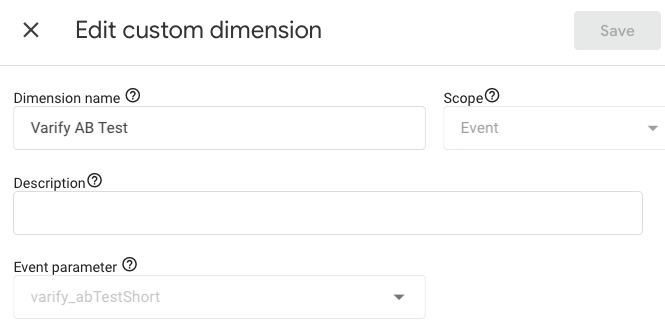
The information of the Varify tracking events is saved in GA4 in a separate custom dimension. If this custom dimension does not exist, no data is displayed in GA4.
Normally, the custom dimension is created automatically as soon as you activate the Google connection in Varify. If this has not happened or you are not using a Google connection, check whether the dimension is available and create it manually if necessary.
Important settings for the Custom Dimension:
- Name: Varify AB Test
- Scope: Event
- Event parameter: varify_abTestShort
Option 4: Set experiment targeting does not include any users
Please also check whether your page and audience targeting includes users. If an error in page targeting means that your experiment is not displayed to any users, no data will end up in the tracking tool.
The same applies to audience targeting.
Test Varify Tracking
To test Varify tracking, you can create and start an A/A test after setting it up.
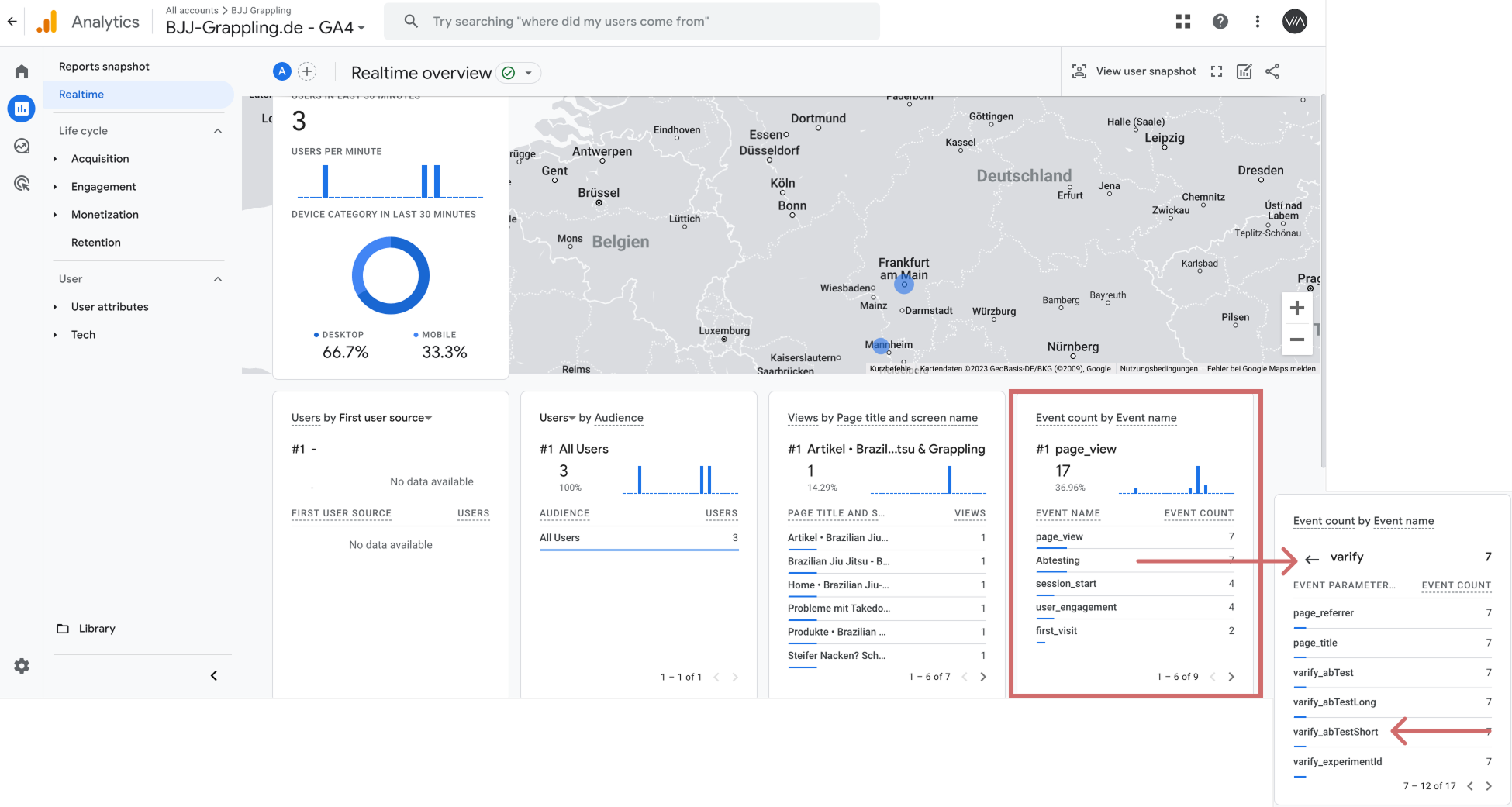
Then check in the GA4 real-time view whether A/B testing events from Varify arrive with the corresponding parameters.
You can find the detailed documentation here: Start an A/A test and check the tracking