Visitors change the variants within an experiment
A visitor sees a different variant on a second visit — the usual causes are storage settings, consent and cross-device use.
- The Tracking Activation Script was not integrated correctly
- Consent management platform blocks the Varify script
- The setting “Clean Up Experiment on URL change is activated
The Tracking Activation Script was not integrated correctly
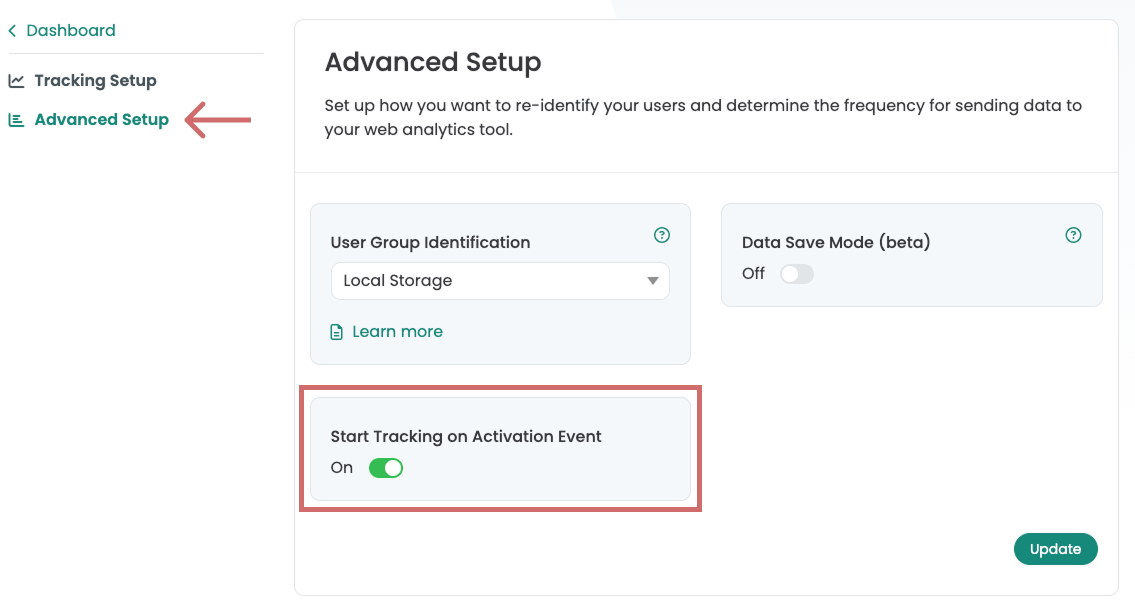
Check whether the setting "Start Tracking on Activation Event" is active and whether the "Tracking Activation Tag" is correctly triggered and delivered in your Google Tag Manager. Here's how to set up the „Tracking Activation Tag.“.
Possible causes & solutions:
- Tracking Activation Script was not triggered
→ Check whether the Tracking Activation Script is configured correctly.
→ It must be in the GTM be triggered in such a way that it is executed immediately after the Google Tag. - Deactivate setting (not recommended)
→ As a result, the tracking events fire directly with the variant playout.
→ Attention: This can lead to “Not Set” events. in the analytics data. This means you have less traffic in your experiments.
Step-by-Step Tutorial
Start Tracking on Activation Event Start demo
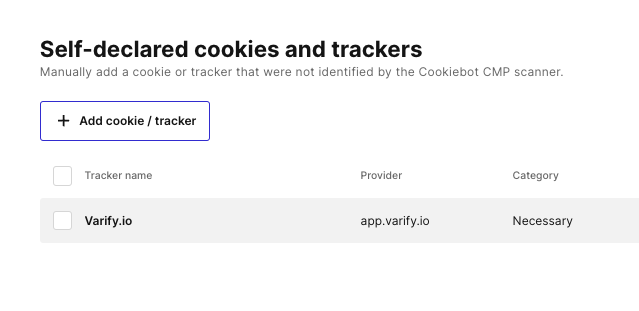
Your Consent Management Platform (CMP) blocks or deletes the Varify Local Storage
If this is the case, you only need to create and categorize Varify.io® or app.varify.io as a provider in the CMP tool. Here is an example of Cookiebot:
"Cleanup Experiment on URL change" is activated
If you are conducting your experiment on a Single Page Application or on Product pages and changes that were originally displayed are no longer visible when switching product variants, for example, you can change the settings under „Page Targeting - Advanced Settings“ the option „Cleanup Experiment on URL change“ deactivate. You can find more information on this here.